6 min read
The Best Screen Recorders for Mac in 2026, by What You Actually Need
The best screen recorders for Mac in 2026: built-in macOS tools, FramioCam, CleanShot X, Screen Studio, Cap, Loom and OBS, matched to the job.
- screen-recording
- mac
- comparisons
KEY TAKEAWAYS
- For a quick, unedited clip, macOS's own Screenshot toolbar (⇧⌘5) is free and already on your Mac.
- For polished demos, the choice is mostly about money and destination: subscription (Screen Studio, Loom) or one payment (FramioCam, CleanShot X), and a link or a published post.
- FramioCam for Mac is the one here that publishes to YouTube and Facebook from the editor and that AI assistants can drive over MCP. We make it, so weigh that accordingly.
There is no single best screen recorder for Mac. There is a best one for a two-minute bug report, another for a YouTube tutorial, and another for a team that lives on shared links. This guide sorts seven options by the job.
A disclosure first: we make FramioCam for Mac, one of the apps below. Competitor details come from each vendor’s own website, checked on 10 November 2026, and each app gets a “pick it if” that we’d stand behind. Prices change; check them before you buy.
The quick answer
| If you need… | Pick |
|---|---|
| A free, unedited clip right now | macOS Screenshot toolbar (⇧⌘5) or QuickTime Player |
| A polished tutorial you’ll post to YouTube or Facebook | FramioCam for Mac |
| Your AI assistant to make the recording for you | FramioCam for Mac |
| The best all-round screenshot tool with OCR and hosted links | CleanShot X |
| Signature auto-zoom motion and iPhone recording, on a subscription | Screen Studio |
| Open source, or Windows and Linux too | Cap |
| A link your team can comment on | Loom |
| Live streaming and complex scenes | OBS Studio |
1. Built into macOS: Screenshot toolbar and QuickTime Player
Press ⇧⌘5 to open the Screenshot toolbar, choose to record the whole screen or a selected portion, and pick a microphone under Options. QuickTime Player’s File › New Screen Recording opens the same tools, and its Edit › Trim cuts the ends.
Pick it if you want a raw clip and nothing else. There are no zooms, captions, annotations or backdrops, and no timeline beyond trimming. How to screen record on a Mac walks through it step by step.
2. FramioCam for Mac: record, polish, publish
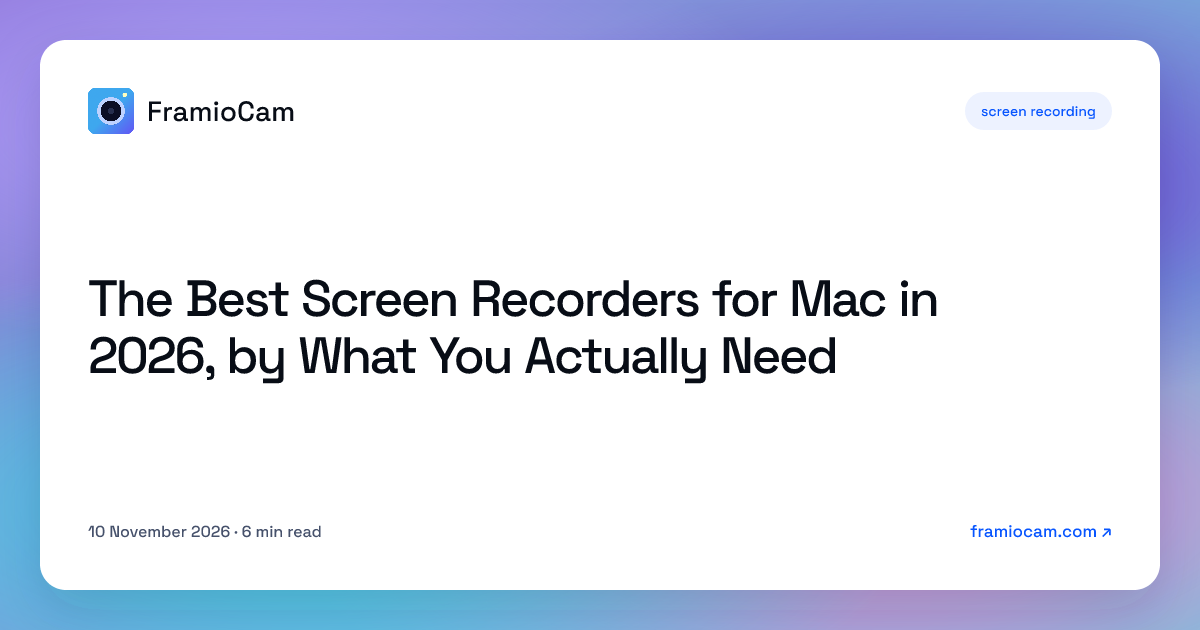
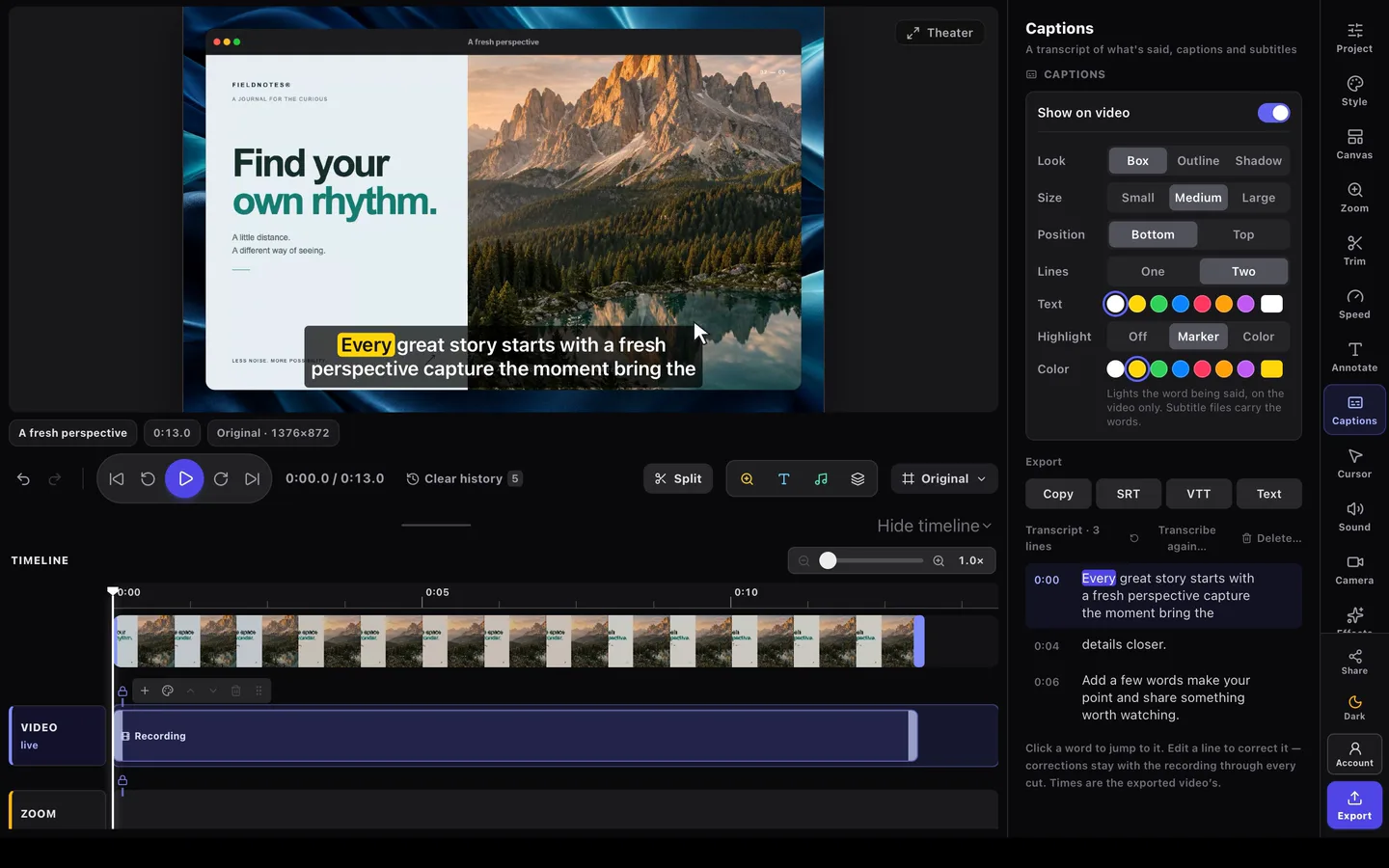
FramioCam for Mac records a display, window or area with camera and audio, then finishes it in a multi-lane timeline: zooms made from your clicks, cursor effects, transitions, timed arrows, blur and text. Captions are transcribed on your Mac by macOS, and there’s a full screenshot studio in the same app.
Two things set it apart. It publishes videos to a YouTube channel or Facebook Page, now or on a schedule (how publishing works). And it ships an MCP server, so Claude, Codex, Cursor or any MCP client can capture, record, edit and export for you (AI assistants over MCP).
Free to download with watermarked exports; Pro For Mac is a one-time licence, and Pro For Both adds the Chrome extension for one payment. Needs an Apple silicon Mac on macOS 14 or later (recording needs macOS 15). No OCR.
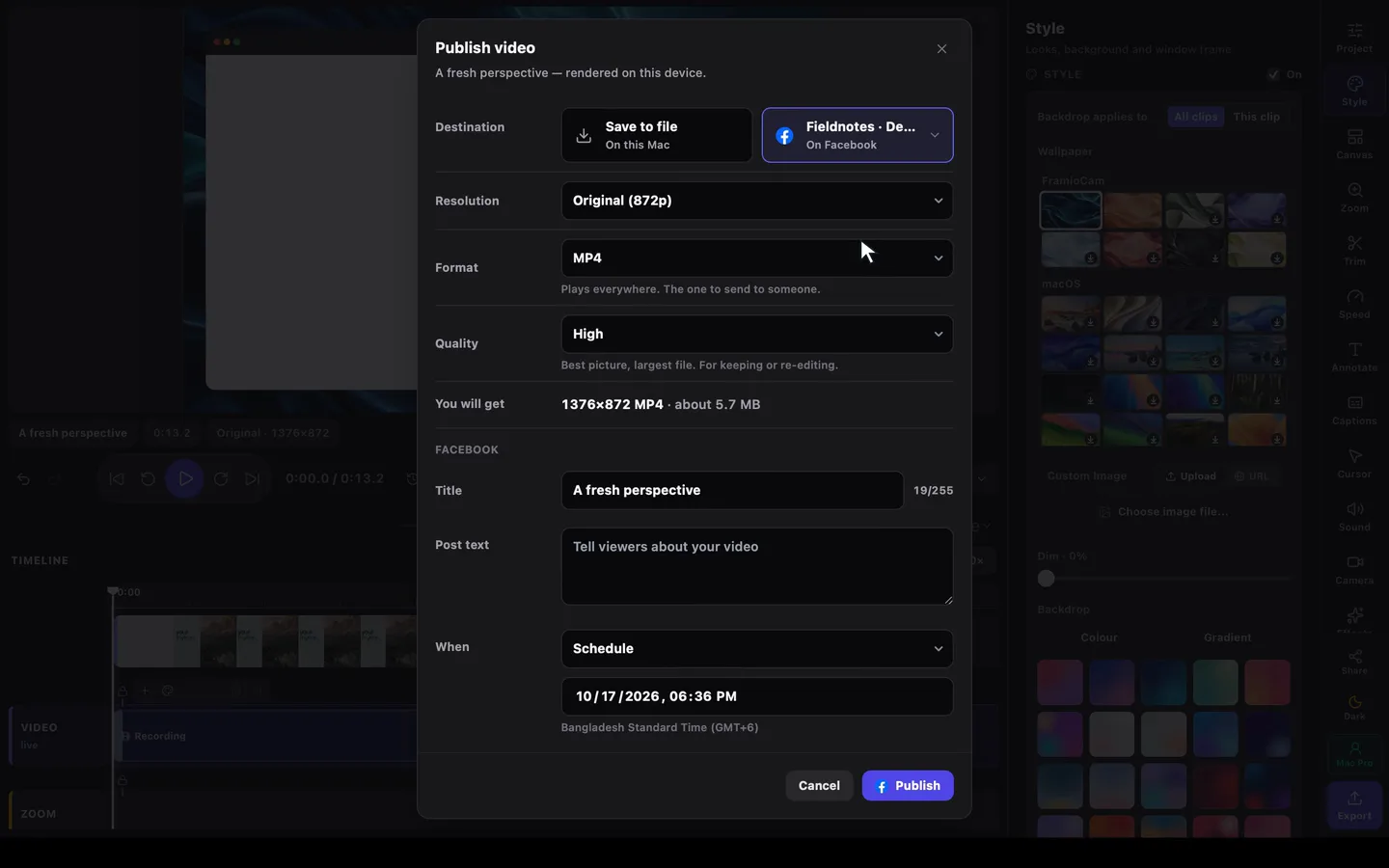
Pick it if your recordings end up on YouTube or Facebook, you’d rather pay once, or you want your AI assistant to do the busywork.
3. CleanShot X: the screenshot specialist
CleanShot X is the reference Mac screenshot tool: area, window and scrolling capture in any app, on-device OCR, a quick-access overlay, and one-click CleanShot Cloud links. It now includes a video editor with smart zooms. Basic is $35 once with a year of updates; Pro is $10 per user/month billed annually for unlimited cloud and team features. Runs on macOS 13 or newer.
Pick it if screenshots, OCR and instant hosted links are most of your day. FramioCam vs CleanShot X.
4. Screen Studio: motion on a subscription
Screen Studio is known for automatic zoom on mouse actions and a smooth cursor, with camera layouts, 4K 60fps export, social presets, shareable links, and iPhone and iPad recording over USB. Every feature is in every plan: $29/month, or $9/month billed yearly.
Pick it if you want its signature motion and record iOS devices, and a subscription suits you. FramioCam vs Screen Studio.
5. Cap: open source and cross-platform
Cap is an open-source recorder for Mac, Windows and Linux with a studio editor and 4K/60fps export. It’s free for personal use; work use needs a Desktop licence ($29/year or $58 once), and Cap Pro ($12 per user/month) adds cloud sharing and AI titles, summaries and transcripts.
Pick it if open source or native Windows and Linux apps matter. FramioCam vs Cap.
6. Loom: the shared link
Loom records and uploads to its cloud, then hands you a link with comments and viewer insights. Paid plans are per seat, per month, and its free tier caps video length.
Pick it if your team communicates in links and comments rather than files. FramioCam vs Loom.
7. OBS Studio: free, powerful, built for streaming
OBS Studio is free and open source on Mac, Windows and Linux, with scenes, sources and live streaming. It records well but has no editor, so polishing happens in another app.
Pick it if you stream, or need complex multi-source scenes and don’t mind a learning curve.
How we’d choose
- Where does the video go? A link for colleagues points to Loom, CleanShot Cloud or Cap Pro. A public post on YouTube or Facebook points to FramioCam for Mac.
- How do you want to pay? Subscription: Screen Studio, Loom, Cap Pro. One payment: FramioCam for Mac, CleanShot X Basic, Cap’s lifetime Desktop licence. Free: macOS, OBS, Cap for personal use, FramioCam with a watermark.
- How much editing? None: macOS. A few zooms: most of the list. A real timeline with captions: FramioCam for Mac.
- Do you use an AI assistant? FramioCam for Mac is built to be driven over MCP.
FAQ
What is the best free screen recorder for Mac? For a raw clip, the macOS Screenshot toolbar (⇧⌘5). For streaming and scenes, OBS Studio. For edited recordings, FramioCam for Mac is free to download and use with watermarked exports, and Cap is free for personal use.
Which Mac screen recorder can publish to YouTube? FramioCam for Mac publishes videos to a connected YouTube channel or Facebook Page, now or on a schedule, from its editor. The others above export files or share links you upload yourself.
Which screen recorder works with Claude or Cursor? FramioCam for Mac includes an MCP server that Claude Code, Claude Desktop, Codex, Cursor and other MCP clients can use to capture, record, edit and export.
Can I record my Mac screen with sound? The macOS toolbar records a microphone. Apps such as FramioCam for Mac can also record the Mac’s own sound alongside your microphone and camera.
Want to try one now? Download FramioCam for Mac free, or read how to screen record on a Mac.