01 / Screenshot capture
Capture across your Mac.
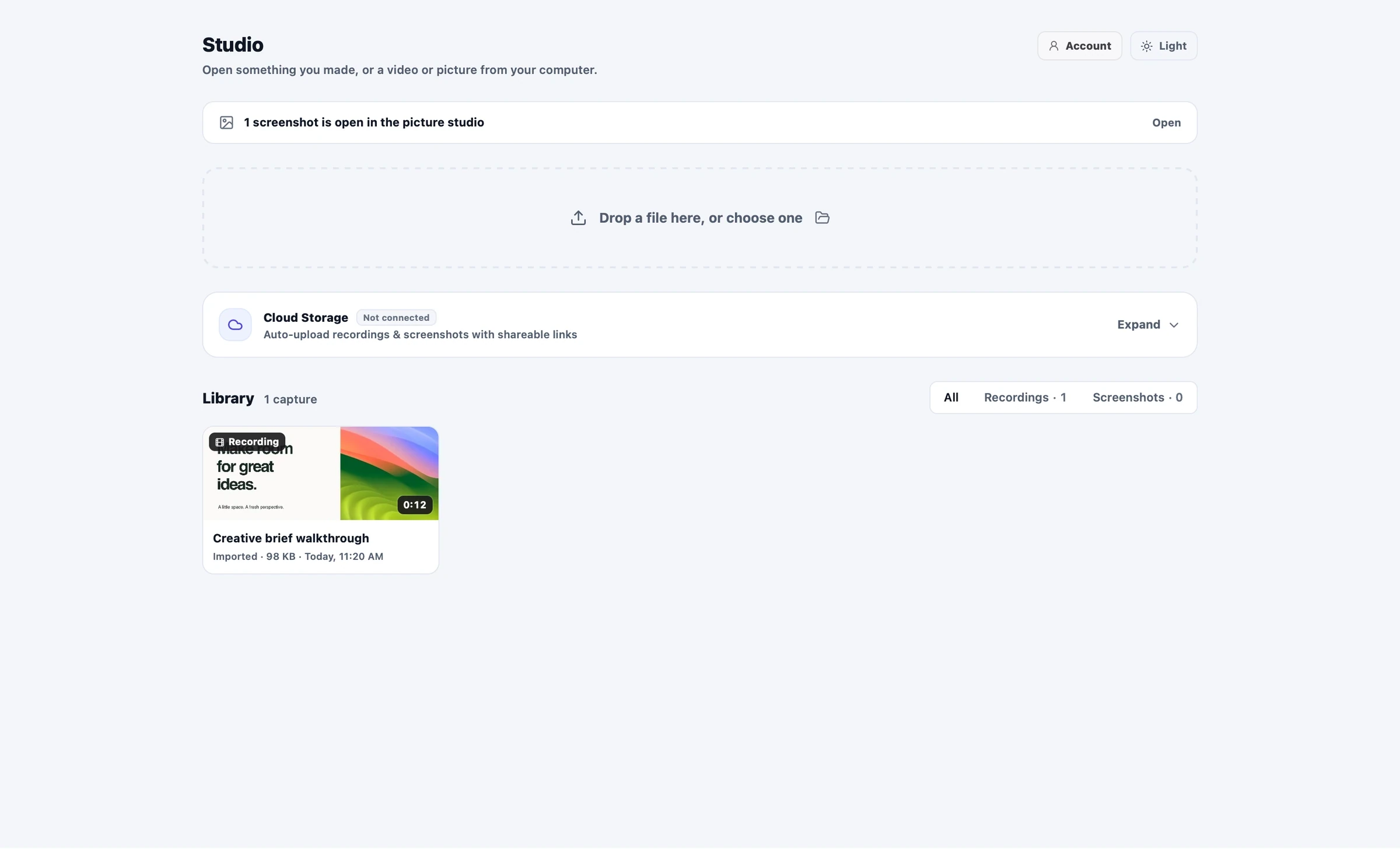
Capture desktop apps and windows with the native Mac app. Open the result in Screenshot Studio, or bring in an image already on your Mac.
Explore screenshot captureFramioCam for Mac · Coming soon
Native capture, local editing, and optional publishing. Explore the Mac app in development, including its own annotation tools, captions, and Facebook scheduling.
01 / Screenshot capture
Capture desktop apps and windows with the native Mac app. Open the result in Screenshot Studio, or bring in an image already on your Mac.
Explore screenshot capture02 / Screen recording
Record work across your Mac’s apps and windows, with camera and audio options. Keep the source on your Mac and shape it into a walkthrough in the video editor.
Explore screen recording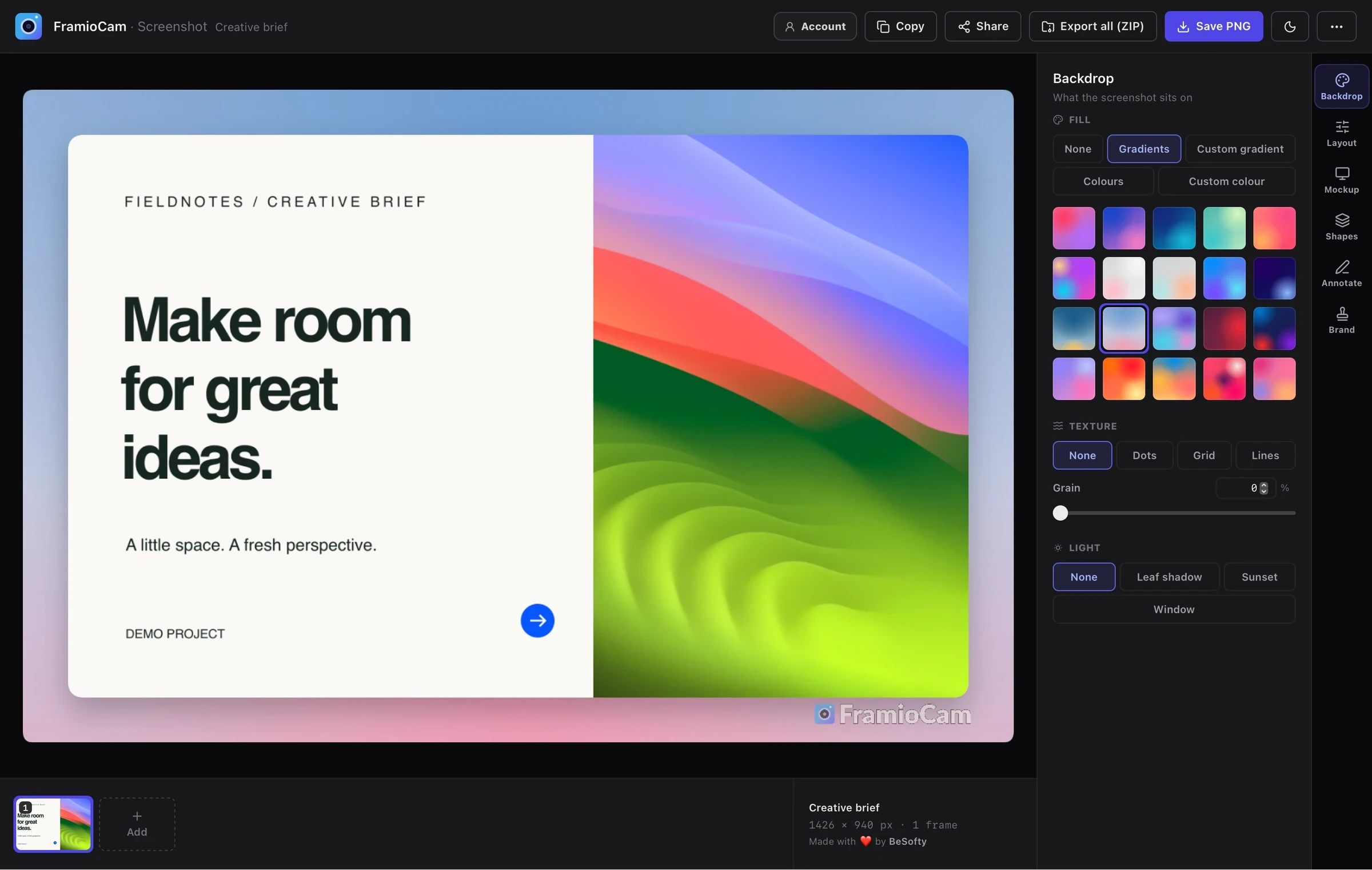
03 / Screenshot editor
Open a capture or a picture from your Mac. Choose its backdrop and framing, explain the details with annotations, then save or share the finished image.
Explore screenshot editor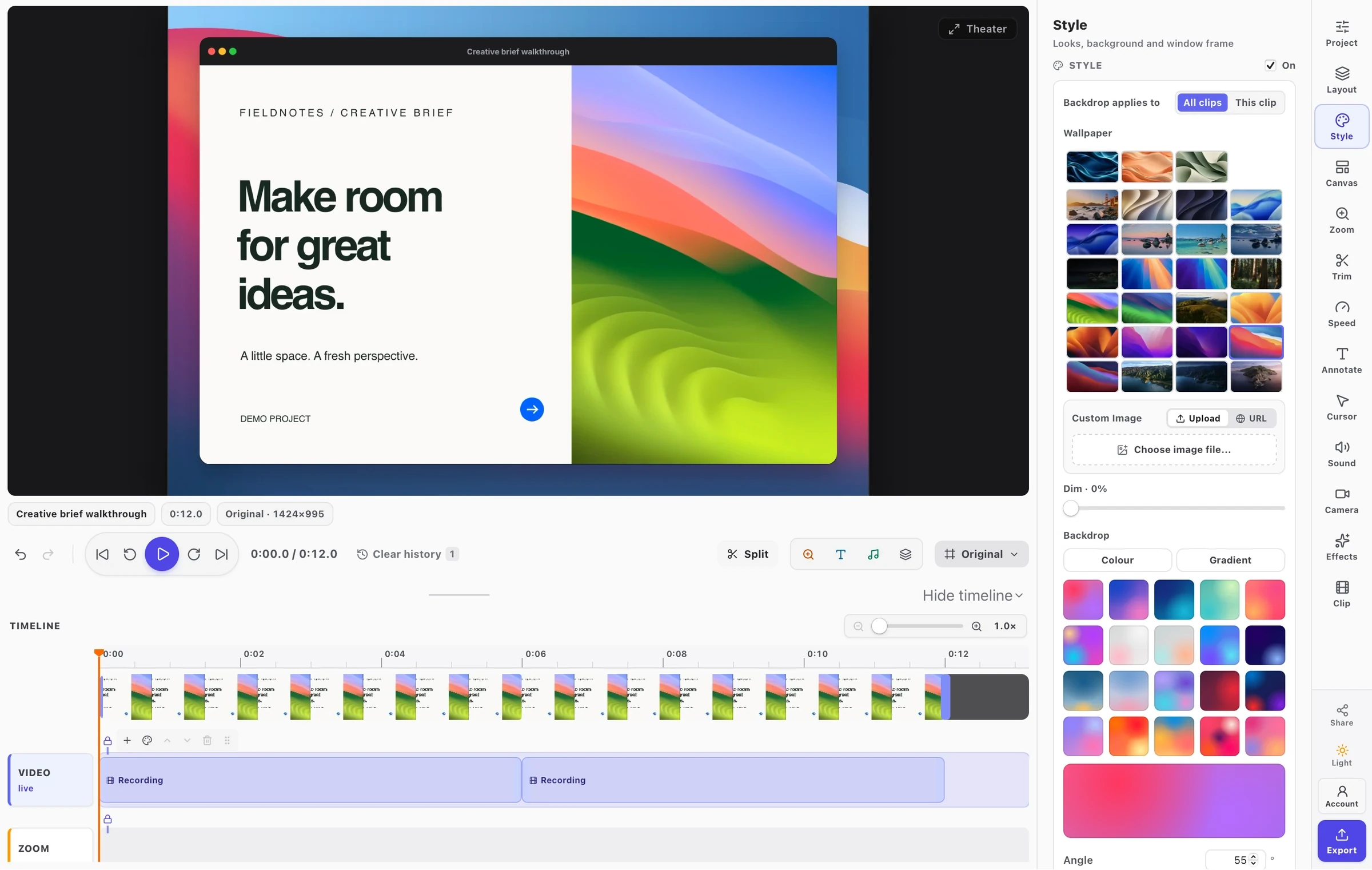
04 / Video editor
Trim pauses and arrange the recording into a walkthrough. Use the native Mac studio’s canvas, annotation controls, and timeline to keep the details easy to follow.
Explore video editor05 / Captions & transcripts
Captions and transcripts are in development for the Mac app. Transcribe speech using macOS on-device recognition, correct the words, and choose captions on the video or a separate subtitle file.
Explore captions & transcripts06 / Publishing & scheduling
Choose optional publishing after editing. Connect the YouTube channels or Facebook Pages you use, then pick a destination for the video or screenshot. Publishing is subject to your plan.
Explore publishing & schedulingFramioCam for Mac
A native capture workflow. A creative workspace of your own. Be there when FramioCam for Mac arrives.
macOS 14 Sonoma or later · Coming soon
We use .