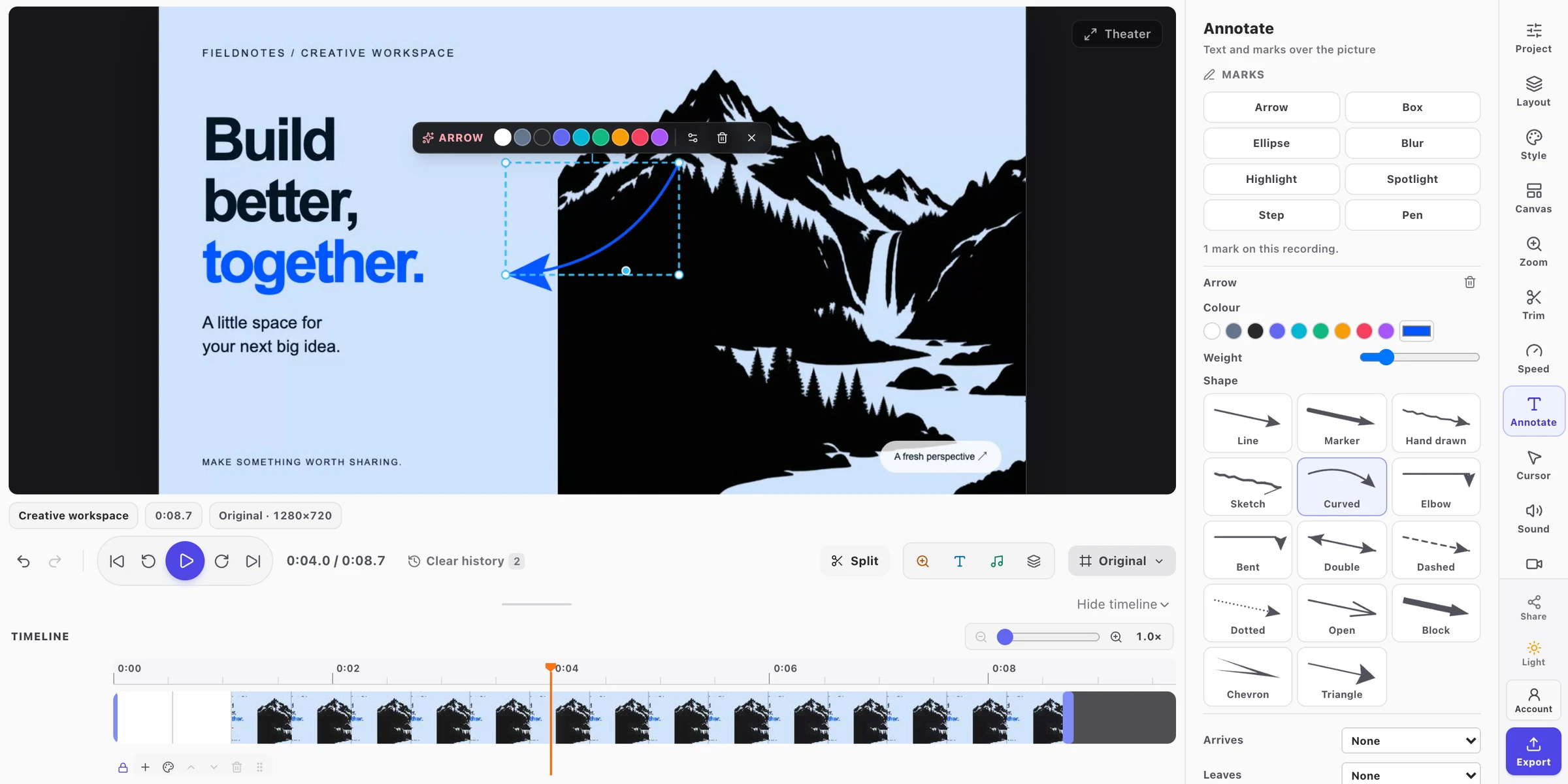
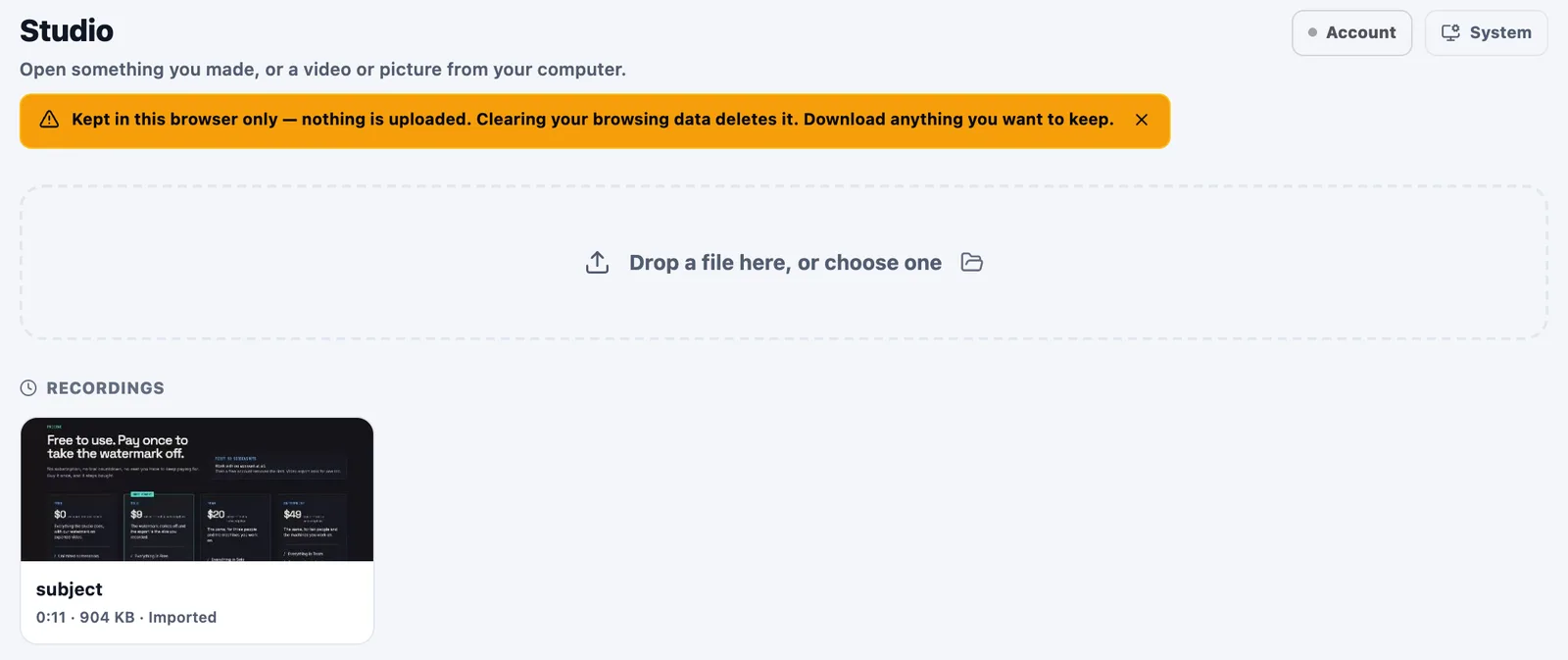
Your Studio library stays local. Connect your own Google Drive when you want to share or sync.
View full sizeGetting started
Connect Google Drive to save exports, share a link, or move an editable project between your devices. Start with the connection steps, then choose what to sync.
- Connect your own Drive
- Share screenshots and videos
- Continue on another device