GETTING STARTED
Getting started with FramioCam.
You record and edit in the FramioCam browser extension, not on the website. Your account at app.framiocam.com only holds your plan, your licence key and the browsers that use it — so it has little to click, by design.
Already have a plan? It is on your account. Step 1 hands it to the extension. Setup takes about three minutes.
STEP 1 · 3 MINUTES
Install and connect
- Install FramioCam from the Chrome Web Store. It works in Chrome, Edge, Brave and other Chromium browsers.
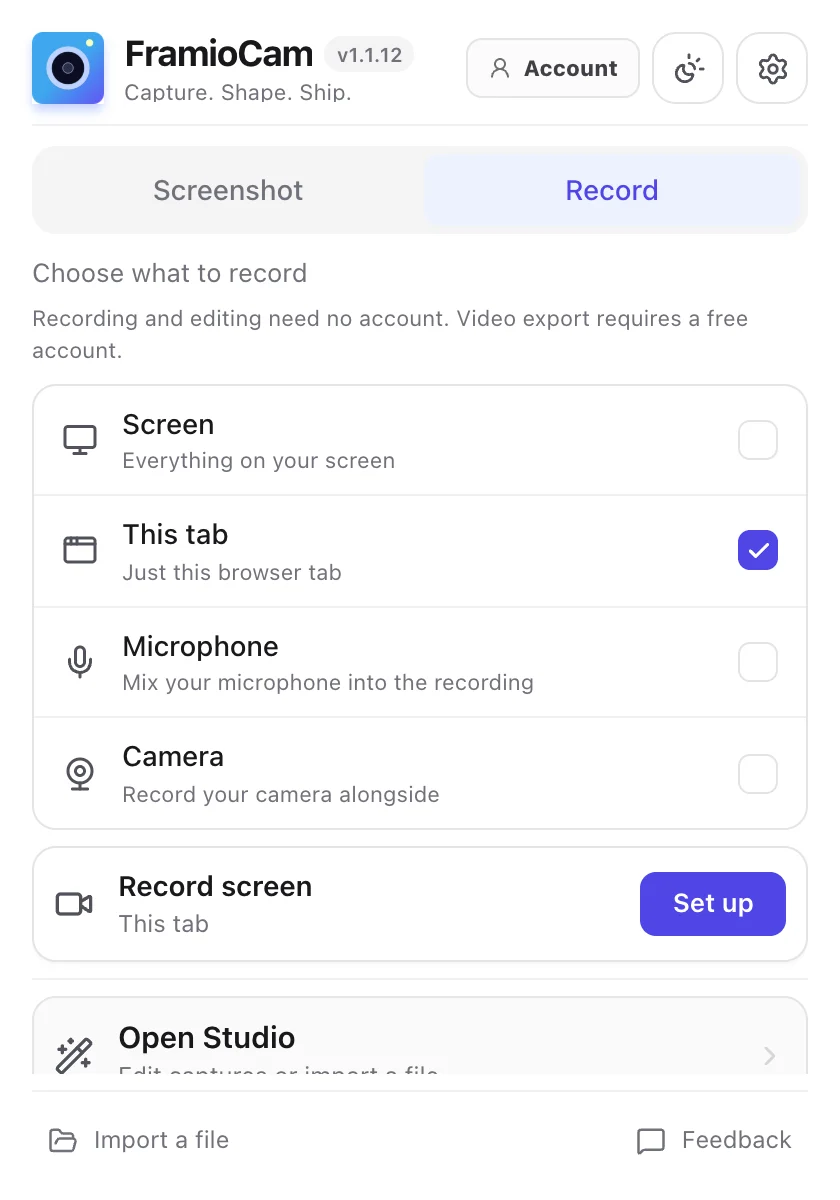
- Pin it: click the puzzle-piece icon right of the address bar, then the pin next to FramioCam. The FramioCam icon now sits in your toolbar. Everything starts from that icon.
- In the same browser, open the Connect page. Sign in if asked, and confirm your email if you have not yet.
- Press Connect. You see “FramioCam is connected”.
- Check it: click the FramioCam icon. The Account button at the top right turns green and shows your plan name.
Connect did not work? Open License in your account and copy your key (it starts with FC-). In the popup, click Account, then Have a license key? Enter key. Paste it and press Connect.
STEP 2
Make your first recording
A 30-second first take is enough to learn the whole flow.
- Click the FramioCam icon and open the Record tab.
- Choose Screen or This tab. Turn on Microphone and Camera if you want them. The browser asks permission the first time.
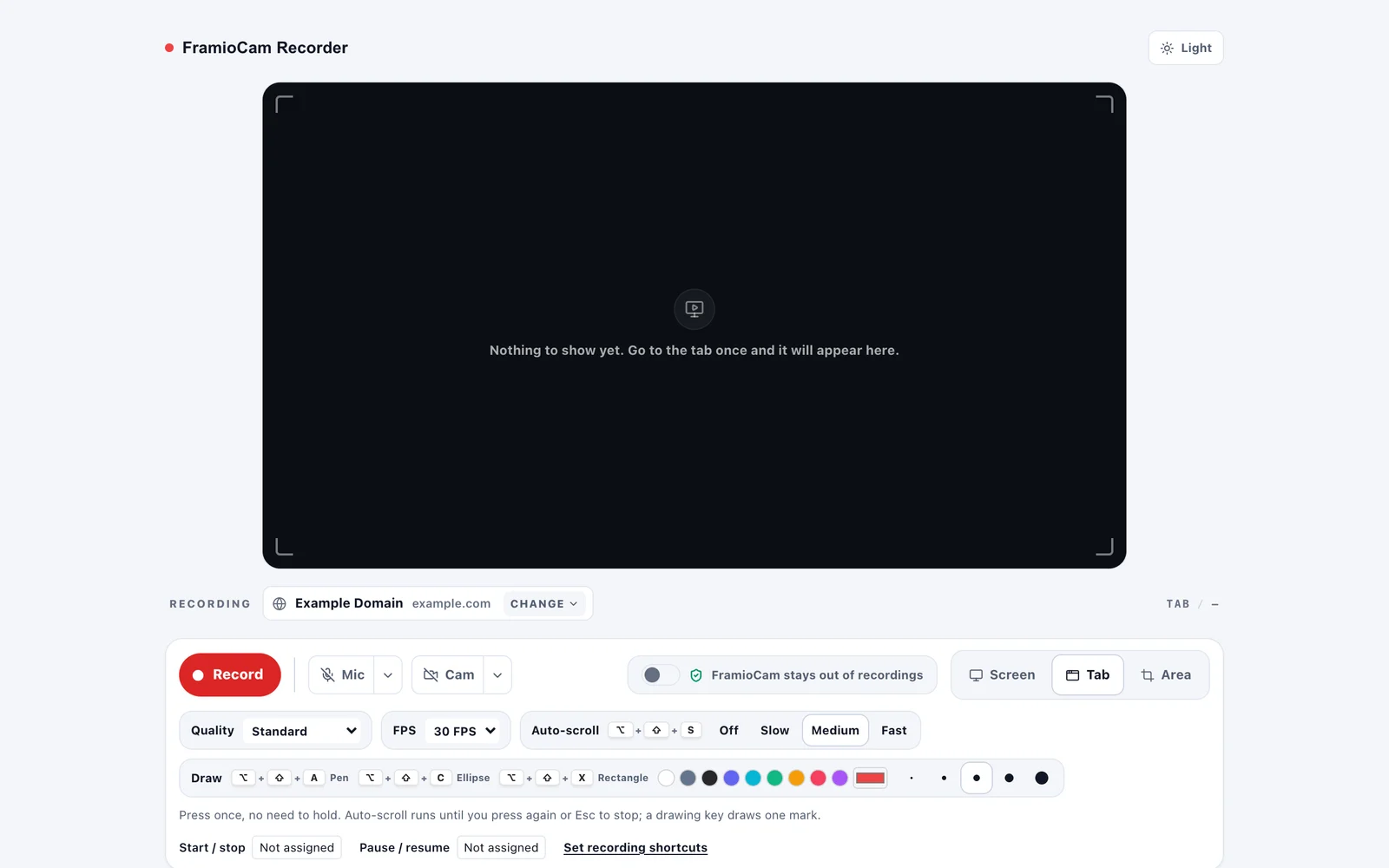
- Press Set up. The recorder opens with a preview, mic and camera pickers and a live mic meter. Check the meter moves when you talk.
- Pick Screen, Tab or Area, then press Record. A tab or area counts down 3-2-1; a screen starts when you confirm Chrome’s picker.
- While recording, a REC badge shows on the toolbar icon. Pause and resume from the popup, the bar on the page, or the icon’s right-click menu.
- Stop, name the take, and choose Save and edit.
Recordings stay on your computer. Nothing uploads unless you connect a cloud drive and ask for it.
STEP 3
Polish it in the Studio
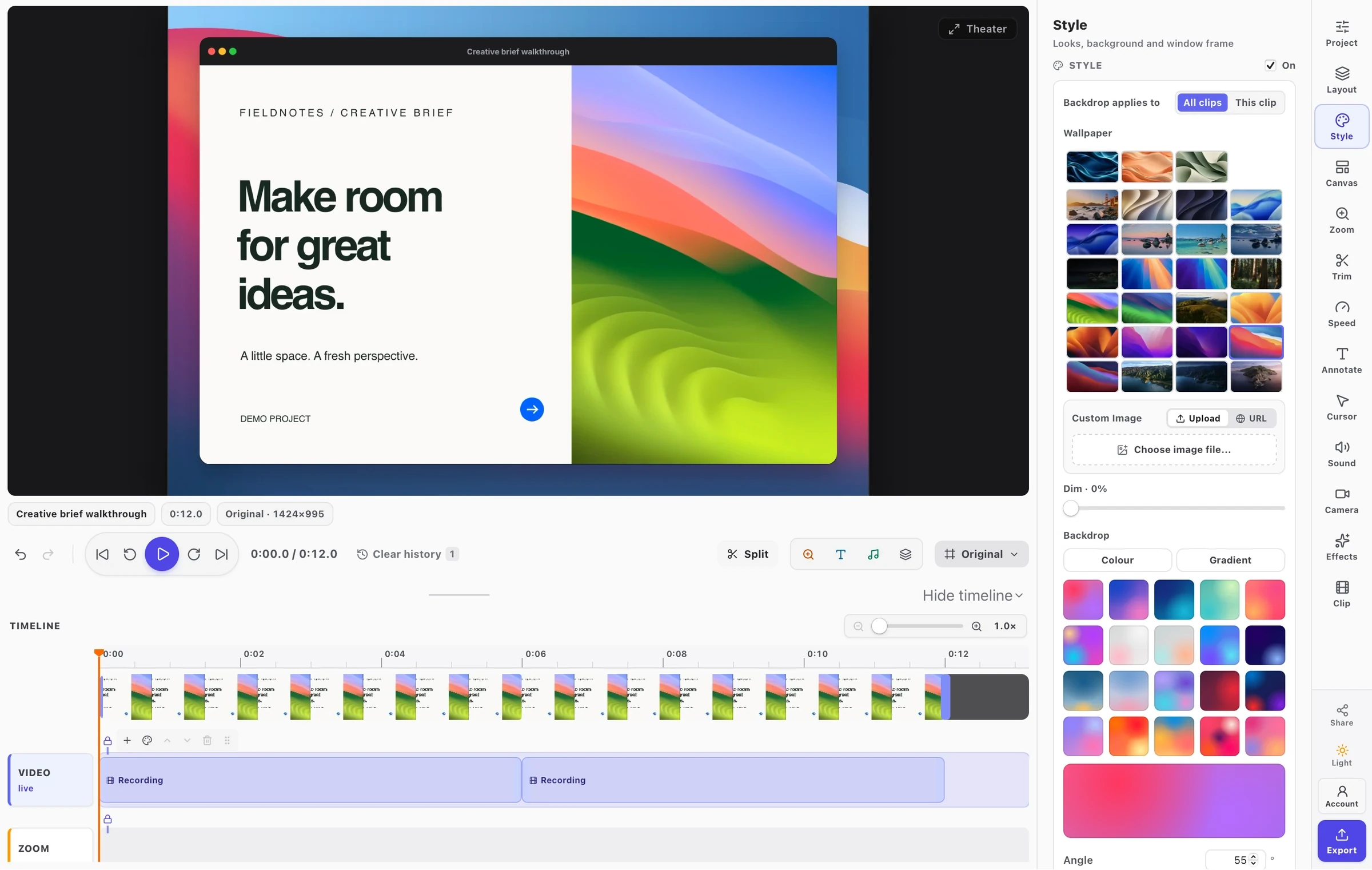
Save and edit opens the Studio: the preview in the middle, settings groups down the right-hand rail, the timeline underneath. Edits save as you go. Five changes make a recording look finished:
| GOAL | RAIL GROUP | WHAT TO DO |
|---|---|---|
| One-click look | Style | Pick a look such as Clean or Vivid: backdrop, frame, padding and shadow in one go. |
| Cut the dead air | Trim | Drag the start and end handles, or split at the playhead and delete the gap. |
| Zoom on clicks | Zoom | Zooms are made from where you clicked. Retime or resize each one on the timeline. |
| Point things out | Annotate | Arrows, boxes, blur, highlights, step numbers or text, each timed on the timeline. |
| Place your face | Camera | Choose bubble, side panel or split, then drag and resize the camera anywhere. |
Lost? Press ⌘ K (Mac) or Ctrl K (Windows) and type a setting’s name, like “blur” or “padding”. Shift ? lists every shortcut.
STEP 4
Export and share
In the Studio, press Export, choose a format, resolution and quality, and export.
- Formats: MP4 for most uses, WebM, animated GIF, or a PNG still of the current frame.
- Resolution: 480p up to 4K. Quality is High, Balanced or Small.
- Watermark: a paid plan exports without the FramioCam mark. Still see it? This browser is not connected yet — go back to step 1.
- Cloud and share links: connect Google Drive, Dropbox or OneDrive under Drives in the popup. Files go to your own drive, and you can make a share link.
SCREENSHOTS
Take and style a screenshot
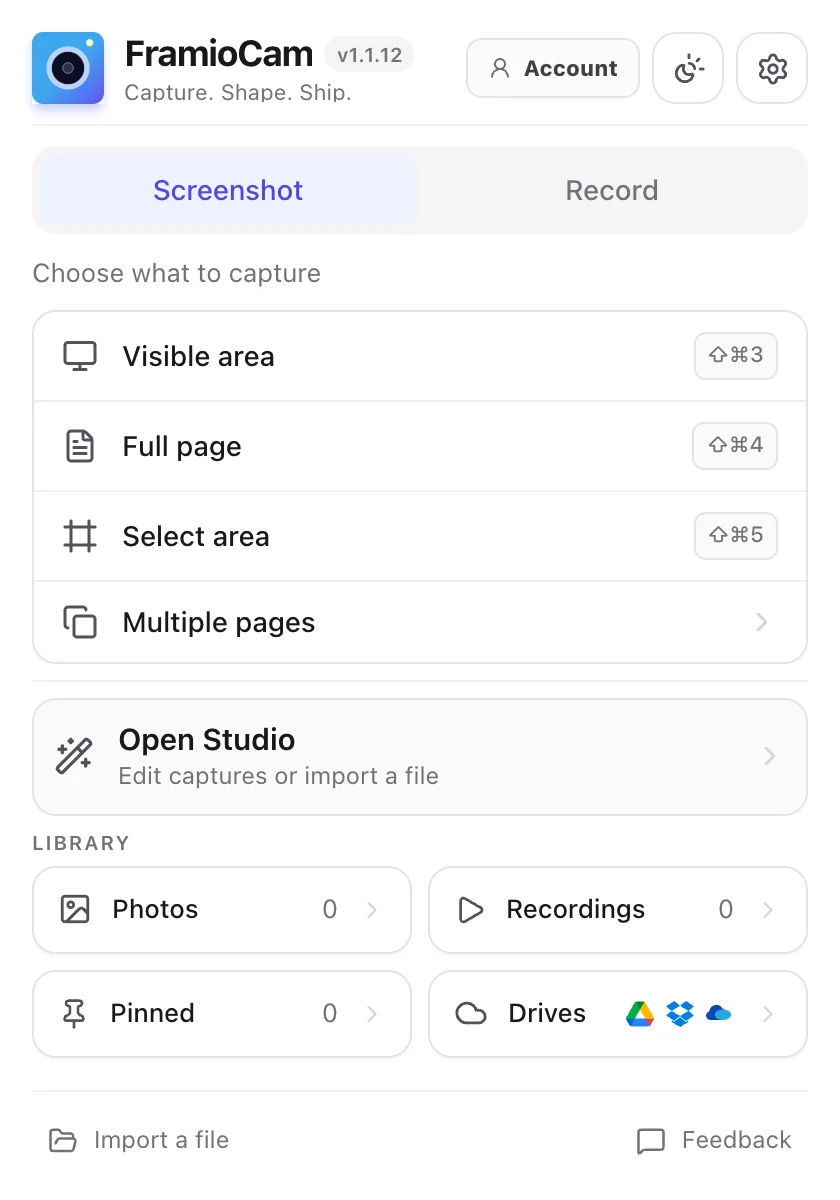
Click the FramioCam icon and stay on the Screenshot tab. Pick a mode:
- Visible area
- What is on screen now
- Full page
- The whole scrolling page, stitched into one image
- Select area
- A rectangle you drag on the page
- Multiple pages
- Several pages of a site, chosen from a list of its links
Small shots go straight to your clipboard. Every shot also waits in the popup: press Open in editor to add a backdrop, a window frame, padding, shadow and annotations, then Download PNG or Copy.
SHORTCUTS AND LIBRARY
Work faster
| ACTION | MACOS | WINDOWS / LINUX |
|---|---|---|
| Open FramioCam | ⌘ShiftF | CtrlShiftF |
| Screenshot visible area | ⌘Shift3 | CtrlShift3 |
| Screenshot full page | ⌘Shift4 | CtrlShift4 |
| Screenshot selected area | ⌘Shift5 | CtrlShift5 |
Recording has no key by default. Set one at chrome://extensions/shortcuts. All shortcuts are on the shortcuts page.
Find past work under Library in the popup: Photos, Recordings, Pinned and Drives. A recording can be edited again, saved as the original .webm, or deleted.
HELP
If something is not working
| YOU SEE | FIX |
|---|---|
| The popup shows a grey Account button | The extension is not connected yet. Open the Connect page in this same browser, or paste your key (step 1). |
| The watermark is on your exports | Same fix: this browser is not connected to your plan yet. |
| “Every device this plan allows is in use” | In your account, open License and remove a browser you no longer use. |
| A capture mode is greyed out | Browsers block capture on their own pages (chrome:// and the Web Store). Open a normal website. |
| No sound from the microphone | Pick the right mic in the recorder and check the meter moves when you talk. Allow mic access if the browser asks. |
| The recording stutters | Choose Lite quality in the recorder. |
Still stuck? Email support@framiocam.com or use the contact page. A person reads every message.