6 min read
Screenshot and Screen Recording MCP Servers for Mac, Compared
MCP servers that let Claude, Codex or Cursor screenshot and record your Mac: FramioCam, Peekaboo, CleanShot MCP and screencapture wrappers compared.
- mcp
- ai-assistants
- screen-recording
- mac
- claude
KEY TAKEAWAYS
- Most screenshot MCP servers stop at a PNG. FramioCam for Mac records video, edits it on a timeline, captions it on-device and exports it, all as MCP tools.
- Peekaboo is free, MIT-licensed and the strongest choice for seeing and clicking in native Mac apps. It captures stills; its README does not describe video recording.
- CleanShot MCP is an unofficial wrapper around CleanShot X's URL scheme. Its last commit was in July 2025.
An AI coding assistant can read your code, run your tests and drive a browser. Ask it to show you something, a screenshot of the bug or a 20-second clip of the new flow, and it needs a tool on your Mac that can see the screen. On a Mac that tool is an MCP server: a local program the assistant calls over the Model Context Protocol.
There are several. They do different jobs, and the difference that matters most is whether you get back a still image or a finished video.
The options, side by side
Checked on 20 November 2026 against each project’s own README or our own app.
| FramioCam for Mac | Peekaboo | CleanShot MCP | screencapture wrappers |
|
|---|---|---|---|---|
| What it is | A screen recorder and editor with its own MCP server built in | A CLI, menu-bar app and MCP server for capture and UI automation | Unofficial MCP server that sends commands to CleanShot X | Small open-source servers around macOS’s screencapture command |
| Screenshots | Display, window or area, then backdrop, marks, blur, text | Screen, window or menu bar, with optional AI analysis of the image | Through CleanShot X’s own capture modes | Full screen or window |
| Video recording | Display, window or area, with mic, system sound and camera on request | Not described in its README | Starts CleanShot’s recorder | Varies by project; check its README |
| Editing | Timeline cuts and speed, click zooms, cursor effects, annotations, crops to 16:9, 9:16 or 1:1 | No | No (edit in CleanShot by hand) | No |
| Captions | On-device macOS transcription, styled captions, SRT and VTT | No | No | No |
| Clicks and typing in other apps | Never | Yes, through Accessibility | No | No |
| Needs | Apple silicon, macOS 15 to record, Mac Pro licence | macOS 15, Node 22 for the npm package | CleanShot X running with its API switched on, Node 18 | Varies |
| Price | Free app; MCP is in Mac Pro | Free, MIT licence | Free wrapper; CleanShot X is paid | Free |
Peekaboo had about 5,500 GitHub stars and a commit on 17 November 2026 when we checked. CleanShot MCP had 17 stars and its last push was on 6 July 2025. Neither is ours; check their repositories before you rely on what is written here.
When a screenshot is enough
If the assistant needs to look at your screen, to read an error dialog or check a layout, a still image is all it needs, and a free tool is the right call.
Peekaboo is the most complete of these. It captures, lists the UI elements of a running app, and can click, type and work through system dialogs. That last part is what makes it a Mac automation tool rather than only a screenshot tool, and it needs Accessibility permission to do it.
screencapture wrappers call the capture command macOS already ships, so there is little to install or configure. Quality and upkeep vary from project to project.
When you need a video someone else will watch
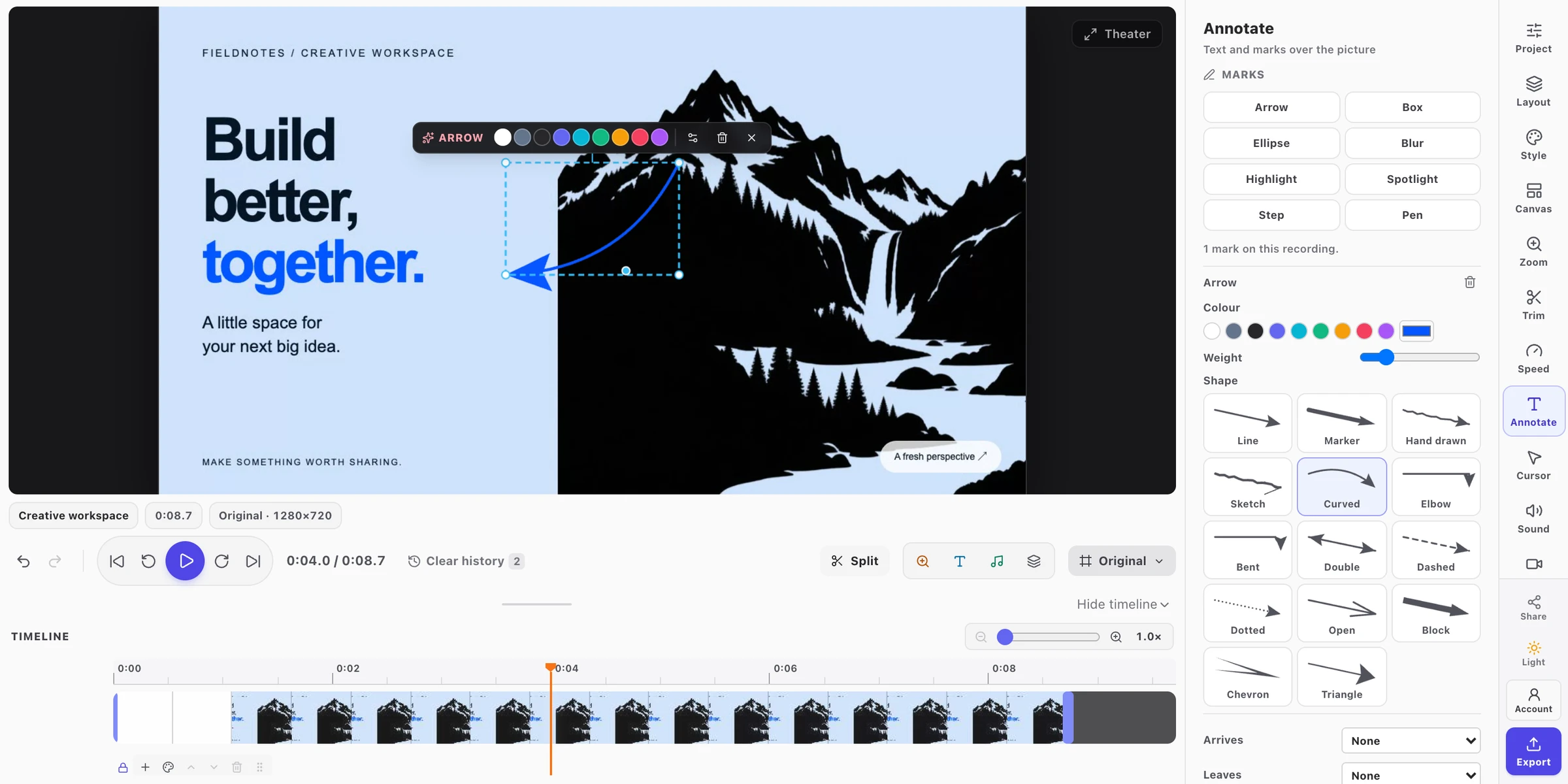
A bug report for a teammate, a release walkthrough for customers, a clip for a pull request: these need a recording that has been trimmed, zoomed where the click happens, and exported in a format people can play. That is the work FramioCam’s MCP tools cover.
A typical request, and the tools that answer it:
Record the checkout flow in the Chrome window, zoom in on each click, speed up the pauses and export an MP4.
list_targetsfinds the Chrome window by title.start_recordingrecords that window only, so your terminal and chat stay out of it.- The assistant drives the page with its own browser tools, sending
pointer_hintbefore each click so the video gets a cursor and click ripples. stop_recording, thenedit_recordingwith automatic zooms on the clicks.edit_timelinespeeds up the idle stretches instead of cutting them.export_recordingwrites the MP4 and returns its path.
That exact session, including the two takes that failed and why, is in Screen recording with Claude, tool by tool.
Every edit lands in the open studio window as an undoable step, so you can take over by hand at any point. Captions run on macOS’s on-device speech recognition; the audio is not uploaded. The full tool list is in the AI assistants guide.
What an assistant cannot do in FramioCam
These limits are in the server, not in a settings note:
- It does not click or type in other apps or open web pages. FramioCam records the screen; driving the browser or app is the assistant’s own job, with its own tools.
- It cannot reach your licence, connected accounts, tokens or macOS permissions.
- Publishing waits for you by default. Since version 0.2.0, an assistant can prepare a post to your YouTube channel or Facebook Page: the publish sheet opens filled in, and nothing is sent until you press Publish. You can let assistants publish without asking in Settings, up to a visibility you choose.
- Moving a capture to the Trash needs your click in FramioCam’s own dialog.
Using two servers together
The tools do not compete for the same job. An assistant can drive a native app with an automation server and record it with FramioCam in the same session. We have tested that pattern with Playwright driving Chrome. We have not tested it with Peekaboo driving native apps, so treat that combination as untried.
Set it up
- Download FramioCam for Mac and open Settings → AI Assistants.
- Switch it on. Each client (Claude Code, Claude Desktop, Codex, Cursor) has a Connect row with its setup steps.
- The first time your assistant connects, FramioCam asks you to allow it. You can revoke it later in the same place.
- Ask the assistant to call
framiocam_statusfirst. It reports whether AI Assistants is on, whether your plan includes it, and whether macOS allows Screen Recording.
AI assistants are a Mac Pro feature. Until 31 December 2026, code BFCM30 takes 30% off; prices are on the deals page.
FAQ
Can Claude record my screen?
Not by itself. Claude Code and Claude Desktop need a local MCP server that can capture the screen. FramioCam for Mac gives them recording, editing, captions and export; Peekaboo and screencapture wrappers give them screenshots.
Is there an official CleanShot X MCP server? Not as of 20 November 2026. The CleanShot MCP project on GitHub is unofficial and says so in its README. It works through CleanShot X’s URL scheme, which has to be switched on in CleanShot’s settings.
Does FramioCam’s MCP server work with ChatGPT or Codex? It works with the Codex app and CLI and with any MCP client running on the same Mac. FramioCam’s server is local, so a cloud-only assistant with no access to your Mac cannot reach it.
Does the assistant see my whole screen? Only what it asks to capture, and you choose which assistant may connect. Recording a single window keeps everything else out of the file.