11 min read
How to Record Your Screen Without Uploading It
Screen recording without uploading: which tools keep the file on your machine, how to check a recorder yourself, and the sync settings that upload it.
- how-to
- screen-recording
- privacy
KEY TAKEAWAYS
- Most popular screen recorders upload by design, often while you are still recording — the hosted link is the product they sell.
- You can check any recorder in five minutes: record with the network off, then watch its Network panel in DevTools.
- A local recorder can still end up in the cloud if it saves into a synced folder like iCloud Desktop or OneDrive.
- No upload also means no backup. Download anything you want to keep.
You need to record something you would rather not hand to a third party: a client’s dashboard, an internal admin panel, a bug that happens to show a real customer’s name. The recording is for one person, or for nobody but you.
Screen recording without uploading is entirely possible on every desktop operating system. The difficulty is that the most popular recorders are built around the upload, and some of them start sending the file before you have pressed stop. This guide covers why that is, how to check any recorder yourself rather than taking its word for it, and which tools keep the file on your machine.
Why most screen recorders upload by default
The hosted link is the product. Tools like Loom are video-messaging platforms: you record, the file goes to their cloud, and you get a URL to paste into Slack. To make that link appear the instant you stop, the recording is streamed up while you record. By the time you decide the take was a mistake, it already exists on somebody else’s servers.
That is a reasonable design for what those tools do, and for a lot of people it is exactly what they want. It becomes a problem only when the file should never have left your machine in the first place, and the tool gives you no way to say so.
So the useful question is not “is this tool private?” It is where does the file physically go between pressing record and pressing stop?
The three places a recording can end up
| Where it goes | Typical tools | Uploaded? |
|---|---|---|
| A file on your disk | macOS Screenshot toolbar, Windows Snipping Tool and Game Bar, OBS Studio, local-first browser extensions | No |
| The tool’s own cloud | Loom, and most web-based recorders that hand you a share link | Yes, usually during recording |
| A file on your disk that a sync client then copies | Any local recorder saving into iCloud Desktop, OneDrive, Dropbox or Google Drive | Yes, a few seconds after you stop |
The third row is the one people miss. It is covered in its own section below.
How to check whether a screen recorder uploads
Do not rely on the marketing page, this one included. A recorder’s behaviour can be checked in a few minutes, and the checks work on any tool.
1. Read where it says the file is stored
Look for a plain statement of where recordings are kept: “saved to your Downloads folder”, “stored in the browser”, “stored in the cloud”. If the settings let you choose a save folder, that is a good sign. If the only way to get your recording back is a link, the recording lives on their side.
2. Record with the network off
Turn Wi-Fi off, record thirty seconds, stop, and play it back. A recorder that has to upload will fail, stall on “processing”, or queue the upload for later. A local one will not notice.
This does not prove nothing is ever sent. A tool could record offline and upload once you reconnect. It is, though, the quickest way to rule a tool out.
3. Watch the Network panel while you record
For a recorder that runs in a web page, open DevTools (F12, or Cmd+Option+I on a Mac), go to the Network tab, then record. Uploads show up as a steady run of large POST or PUT requests while recording, or one big one when you stop. Sort by size and they are hard to miss.
4. For a browser extension, inspect the extension itself
An extension does its work in its own background context, not the page you are on, so the page’s Network tab will not show its traffic. Instead:
- Go to
chrome://extensionsand turn on Developer mode. - Find the recorder and click the service worker link under Inspect views. If an offscreen document is listed there too, open that as well: that is often where recording actually happens.
- Open the Network tab in the DevTools window that appears, then record and stop.
What you should see from a local-first recorder is nothing while you record, and at most a small request or two that has nothing to do with your video.
Options for recording your screen locally
Built into the operating system
- macOS:
Cmd+Shift+5opens the Screenshot toolbar, which records the whole screen or a selected portion to a.movfile. It saves to the Desktop by default; Options changes the folder. - Windows 11: the Snipping Tool records a region of the screen (
Win+Shift+R, or Record in the app) to an MP4. Xbox Game Bar (Win+Alt+R) records a single app and saves toVideos\Captures, but it cannot record the desktop or File Explorer. - Linux (GNOME) and ChromeOS: both have a screen recorder in the built-in screenshot tool, saving to a local folder.
All of these keep the file local and cost nothing. What they do not give you is much of an editor: at most a trim.
OBS Studio
Free, open-source, and it records straight to a file in the folder you choose. It is also a live-streaming tool, which is where its complexity comes from. Scenes, sources and encoder settings are more than most people need to capture a two-minute bug report, but nothing leaves your machine unless you configure a stream.
A browser extension that records locally
The middle ground: the convenience of a one-click recorder and a real editor, without the upload. The thing to check is exactly what section 4 above describes. “Extension” says nothing about where the file goes, and many popular ones upload by default.
The sync folder: how a local recording gets uploaded anyway
A recorder can be completely local and your recording can still be in the cloud a few seconds later, because of where it was saved.
- macOS: if Desktop & Documents Folders is on in iCloud Drive settings, everything the Screenshot toolbar saves to your Desktop is uploaded to iCloud.
- Windows: OneDrive’s folder backup can cover Desktop, Documents, Pictures, Music and Videos, and Videos is exactly where Game Bar saves.
- Anywhere: a Dropbox, Google Drive or company-managed sync folder does the same to whatever lands inside it.
None of this is the recorder’s fault, and none of it is visible from the recorder. Before recording something sensitive, point the recorder at a folder you know is not synced. On a work machine, ask whether managed backup covers your whole user folder. It sometimes does.
How FramioCam records without uploading
FramioCam is a Chrome extension built on the local model, and it is the tool this site makes, so weigh the rest of this section accordingly.
Recording is set up in its own tab: pick a tab, a screen, or an area you draw, plus a microphone and camera if you want them.
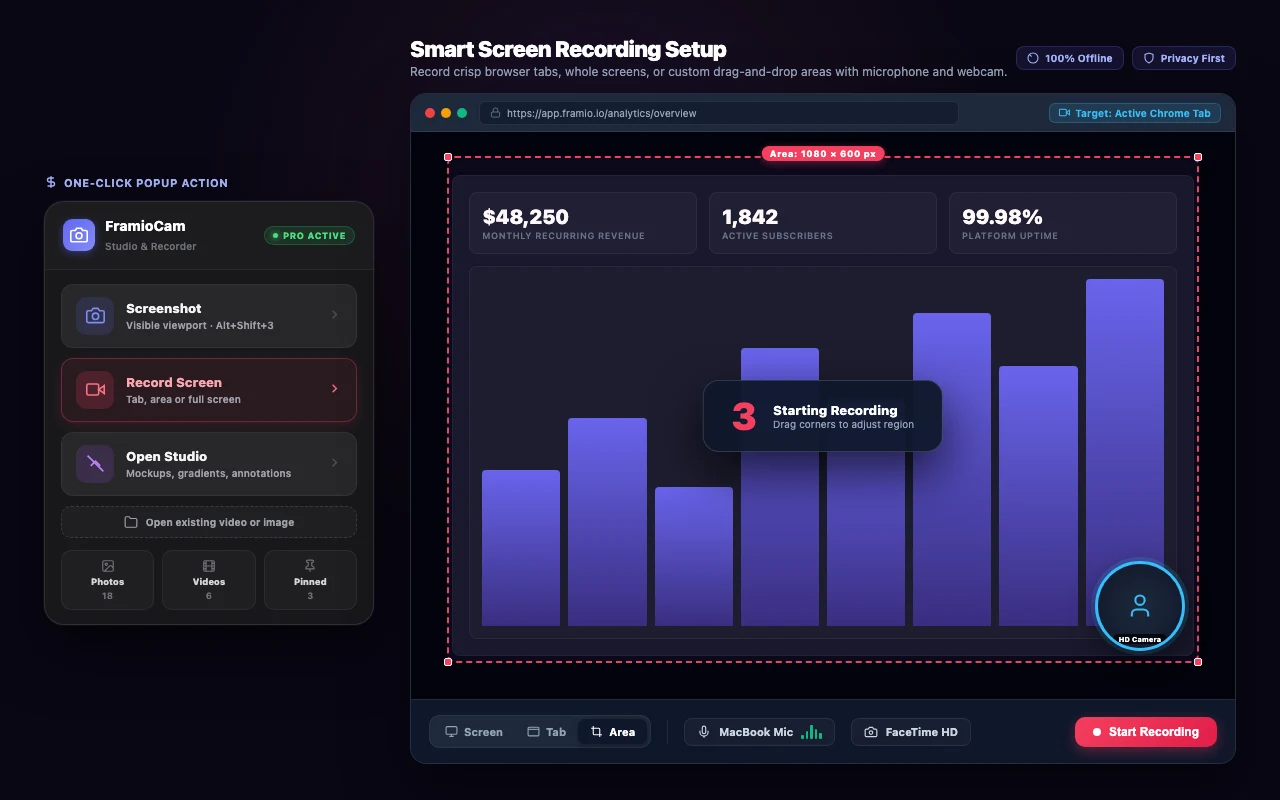
While you record, the video is written to the browser’s own private file storage on your disk (OPFS) as it comes in. It does not have to fit in memory, and a crash loses a few seconds at most. There is no upload step to wait for when you stop, because there is nowhere to upload to.
Editing happens in the same place. Trims, cuts, zooms, text and the webcam bubble are all worked out and rendered on your machine, and the export is a file your browser saves: MP4, WebM, GIF or a PNG frame.

Two requests do leave the extension: a licence check (your key, the browser’s install id and the extension version) and payment, which Paddle handles. Neither carries your work. What leaves your browser lists them in full, and section 4 above is how you confirm it for yourself.
The screen recording feature page has the detail on sources, audio and area recording, and the video editor covers what you can do with a recording afterwards.
The trade-off: no upload means no backup
This is the part local-first tools do not always say out loud. If nothing is uploaded, there is no copy anywhere else. (On Pro and Teams you can choose one: Cloud Sync keeps a copy in your own Google Drive, sent straight from your browser — still nothing uploaded to us.) FramioCam shows this notice the first time you open it, before there is anything to lose:
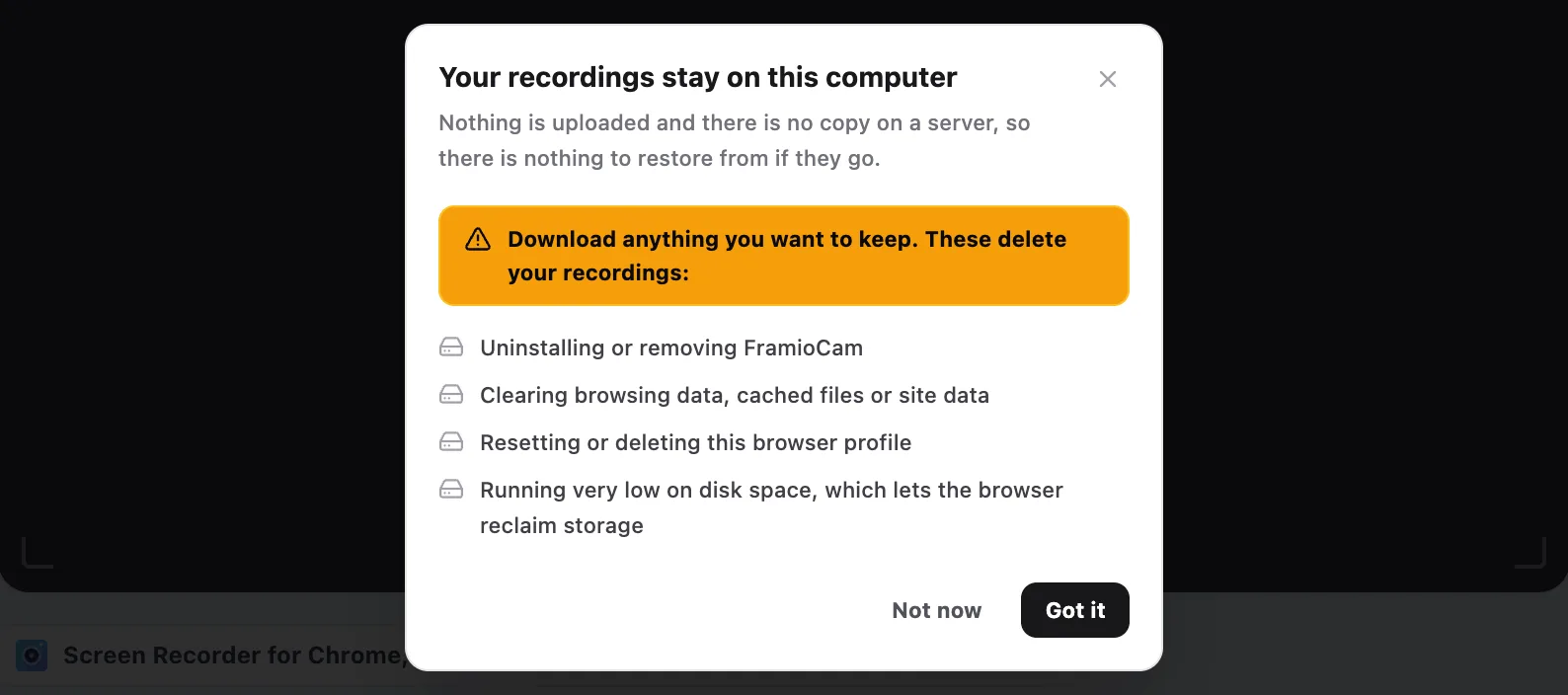
Uninstalling the extension, clearing browsing or site data, resetting the browser profile, or running very low on disk space all remove recordings kept in the browser. The same reminder stays on the studio’s library page:
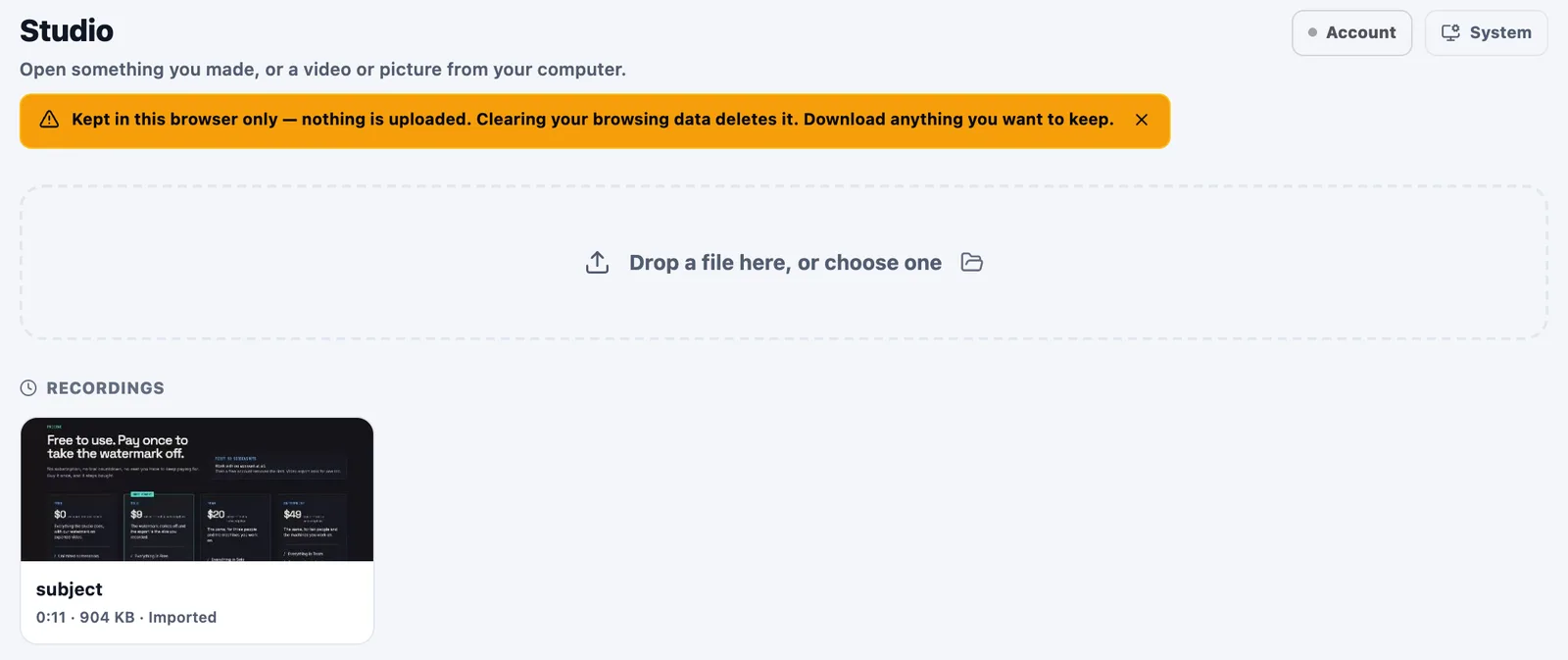
The practical rule is simple: export or save anything you want to keep, and put it wherever you keep important files.
There are also cases where an uploading tool is the better choice, and it is worth being straight about them:
- You need a link, not a file. If the whole workflow is “record, paste a URL”, a hosted tool does that in one step and a local one takes two.
- You want viewer comments and analytics on the video itself. That needs a server.
- You record on a phone. A browser extension does not.
If those do not apply, FramioCam vs Loom goes through the comparison in detail, and the alternatives page covers the other tools people usually weigh.
A checklist before recording something sensitive
- Confirm the recorder is local. Airplane-mode test, then the Network panel.
- Check the save folder is not synced. iCloud Desktop, OneDrive and Dropbox all count.
- Close what should not be in the shot. Other tabs, notifications, the password manager, the chat with the customer in it.
- Record a tab or an area instead of the whole screen where you can. Less in the frame means less to leak.
- Blur what you cannot avoid before you send the file, not after.
- Save the export somewhere deliberate, because a local recording has no backup.
FramioCam is free to try. Recording and editing need no account, and exporting a video asks for a free one. Paid plans are a one-time payment, not a subscription.
FAQ
Is it possible to record my screen without uploading anything? Yes. The recorders built into macOS, Windows, Linux and ChromeOS, OBS Studio, and local-first browser extensions such as FramioCam all save the recording as a file on your own machine. Uploading is a feature of hosted video-messaging tools, not of screen recording itself.
How can I tell if a screen recorder uploads my videos? Record with Wi-Fi off and see whether it still works. Then record with DevTools open on the Network tab and look for large requests while recording or after stopping. For a browser extension, inspect its service worker from chrome://extensions, because its traffic does not appear in the page’s own Network tab.
Does Loom upload recordings while I record? Yes. Loom streams the recording to its servers during capture so the share link is ready as soon as you stop. That is what makes the instant link possible, and it means the video exists on Loom’s side whether or not you go on to share it.
Can a local screen recording still end up in the cloud? Yes, if it is saved into a folder a sync client watches. iCloud’s Desktop & Documents sync, OneDrive folder backup, Dropbox and Google Drive all upload whatever lands in their folders. Save sensitive recordings somewhere outside them.
Where does FramioCam store recordings? In the browser’s private file storage on your own disk, written as you record. Nothing is uploaded to us, so unless you have connected your own Google Drive there is no copy elsewhere: uninstalling the extension or clearing browsing data deletes recordings you have not exported. Export anything you want to keep.