8 min read
A Faster Way to Send a Personalized Sales Demo
Record a personalized sales demo that answers one buyer question. Includes a 90-second script, a follow-up email and practical recording and sharing steps.
- how-to
- sales
- screen-recording
- video-editing
KEY TAKEAWAYS
- Record the workflow that answers the buyer's question, including the starting state and the result.
- Keep a reusable demo workspace with sample data, then adapt the example and narration for each prospect.
- Send a short written answer beside the video and ask for one specific next step.
- Check the exported file and the recipient's access before sending; a local recording does not include sales analytics.
The sales call ends with a question you could answer in a minute if the buyer were still looking at your screen. Instead, you start writing an email about which menu to open, what to change and where to find the result.
That is a good use for screen recording for sales. Record the answer, send it with a short explanation, and give the buyer something they can forward to the colleague who missed the call.
The time saving comes from preparation: a reusable demo workspace, one rehearsed workflow and a simple edit. This guide uses the available FramioCam Chrome extension to capture and finish the clip, with a script and follow-up email you can adapt.
Pick the question the video should answer
Use a question from the conversation. “Can we reschedule a job without losing its checklist?” gives you a concrete demonstration. “Here is everything our scheduling app does” gives you another product tour.
Before recording, write down:
- Who will watch: the person on the call, their manager, or both?
- What they need to see to resolve the question.
- What you want them to do after watching.
A video is useful when the action or resulting state needs to be seen. A direct answer about a contract term may be better in writing. If the question needs discovery or depends on their configuration, arrange a working session rather than recording assumptions as though they were confirmed.
HubSpot’s sales-demo guidance recommends tailoring the demonstration to the prospect’s needs and showing the relevant features. For a follow-up clip, that means choosing the workflow before pressing Record.
A 90-second personalized sales demo script
Here is a fictional example: an operations manager is evaluating a scheduling product and wants to know whether moving a job preserves its checklist. These timings are an editing target, not a claim that ninety seconds is the best length for every sales video.
| Time | Show | Say |
|---|---|---|
| 0–10 seconds | The sample job open on Tuesday | “You asked whether moving a job would mean rebuilding its checklist. Here is the same situation in a demo workspace.” |
| 10–25 seconds | The job’s three checklist items | “This job has three items, with one already completed.” |
| 25–55 seconds | Change the scheduled day to Thursday and save | “I change the date and save. The job now appears on Thursday.” |
| 55–75 seconds | Reopen the job and inspect the checklist | “The same three items are here, including the completed one.” |
| 75–90 seconds | Keep the final state visible | “Which other details should we check when we test this against your scheduling process?” |
The before-and-after check answers the question. Showing only the date picker would leave the buyer to assume the checklist survived.
Use the buyer’s terminology when it matches the product. If they call these records “jobs,” use that word in your explanation. Keep actual interface labels accurate so they can follow the same path later.
For a broader release announcement, use the separate 30-second product walkthrough guide. A sales follow-up should spend its time on the question from the conversation.
Prepare a demo workspace you can reuse
Set up sample records that support the workflows you demonstrate often. Give them plausible names, include the necessary starting conditions and keep a note of how to reset each example after recording.
For this scenario, you need a scheduled job, three checklist items and a clear destination date. You do not need the prospect’s real customer list, private notes or live jobs.
Rehearse the sequence once. Check that the result actually supports what you plan to say. If the behavior depends on a paid tier or a particular setting, state that condition beside the video; do not let a demo account’s permissions imply that every user gets the same result.
Keep a reusable outline, but record a fresh explanation when the buyer’s question changes. An opening with their name cannot make an unrelated feature tour useful.
Record the workflow and make a short edit
Choose a tab when the demonstration stays in one web app. Use a wider source when switching windows is part of the answer. Select the microphone, record a brief test and listen back before making the full take. The recording guide covers the source and microphone controls.

Once you have a usable take, trim the setup from the beginning and the stop-button movement from the end. For an internal mistake, split before and after it, then use ripple delete to remove the section and close the gap. The editor guide explains those controls.
Watch across each cut. The buyer should still see the action that caused the result. If you shorten a long wait, label the skip rather than suggesting the operation finished instantly.
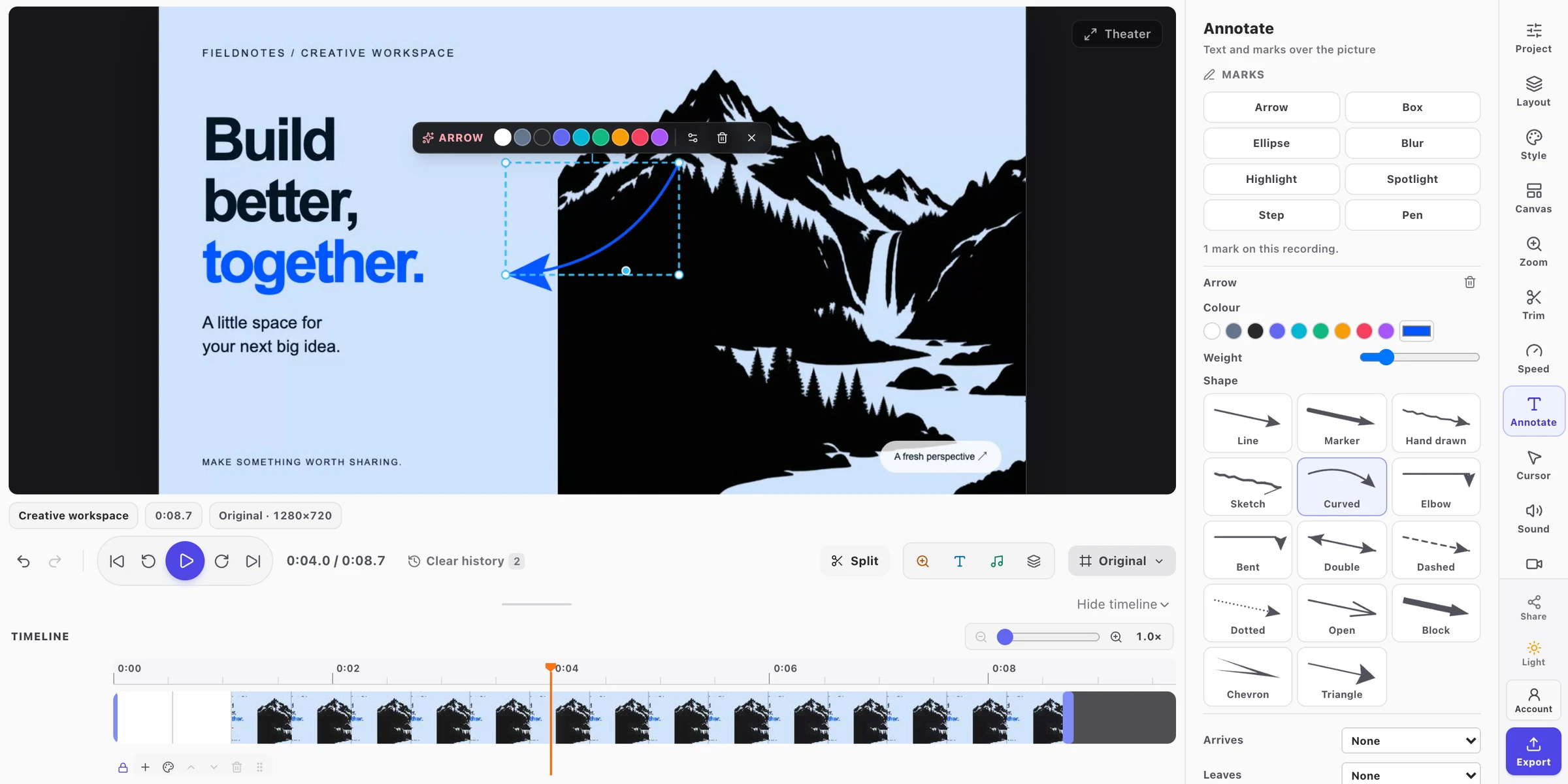
Add a zoom or a brief mark only where a control is hard to find. Keep the resulting screen visible long enough to inspect. Then export and watch the downloaded file at the size the buyer is likely to use.
If narration carries essential information, provide accurate captions through your hosting or captioning workflow. W3C’s caption guidance explains synchronized speech and meaningful audio, including the need to review automatic captions. Check product names and instructions carefully.
Choose how the buyer will open it
Export in a format your destination accepts and your device and plan support. MP4 is a practical choice when available. Check the file before uploading, including the smallest important label and the last frame.
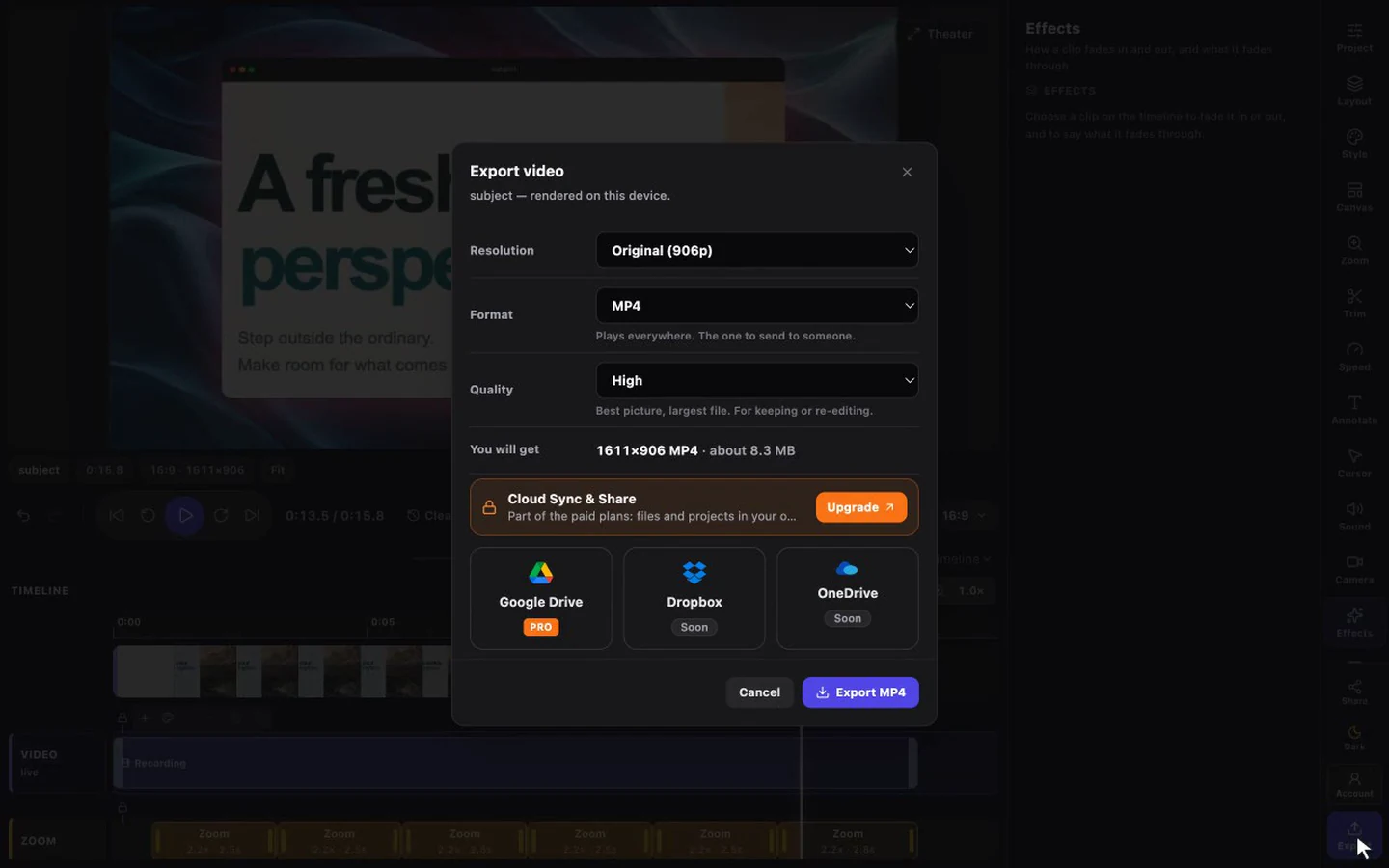
Chrome Free enables video export with a free account, supports exports up to 720p and includes a FramioCam watermark on Studio exports. Pro removes that watermark, offers exports up to 4K and includes Google Drive sharing. See current plans for the allowances.
You can upload a local export to an approved destination yourself. With Pro or Teams, FramioCam can also send the file directly to your Google Drive and return a share link. Its Share Link workflow allows anyone with that link to view the file. Check that this is appropriate before sending it.
For recipient-only access, use Drive’s sharing settings to restrict the file and grant the intended people Viewer access. Google’s sharing instructions distinguish restricted access from anyone-with-the-link access; work accounts may limit available options. A colleague opening a restricted link may need permission of their own.
Test the intended access, not just whether the link works while you are signed in as the owner. Capturing and editing locally is separate from uploading or sharing the finished file. The cloud guide and privacy page explain the available paths, including automatic uploads after connecting Drive.
Send an email that works without the video
Put the answer in the message, then link the demonstration. That lets the buyer decide whether to watch and gives them useful context when forwarding it.
Subject: Moving a job while keeping its checklist
Hi Maya,
You asked whether rescheduling a job keeps its checklist. In the configuration shown here, it does: the items and their completion state remain when the date changes.
I recorded a 90-second example in a demo workspace: [insert the checked video link]. It shows the job before the move, the date change and the checklist afterwards.
Which other details should we check against your scheduling process?
Thanks, [Your name]
This message is an example for the fictional product above. Replace the answer with behavior you have verified in your own product, including any relevant conditions.
For a reply that simply confirms the answer, written follow-up may be enough. If the buyer introduces a new workflow, use that question to plan the next conversation.
Check whether the clip helped
Record the question answered, the date sent and the next action in your normal sales notes. Useful signals include a reply that resolves the concern, a colleague joining the discussion, or an agreed test of the workflow.
A local export and a Drive link do not give FramioCam per-prospect watch tracking or CRM automation. If you need those capabilities, evaluate a hosting or sales-video platform separately. Even a tracked link click does not establish that someone understood the demonstration.
Keep the source recording and note the product version shown. When the workflow changes, replace the clip before reusing it in another conversation.
FAQ
How do I personalize a sales demo video? Choose a question from the buyer’s conversation, use sample data that reflects the workflow and show the result that resolves it. Adapt the explanation and next step to their situation.
How long should a sales follow-up video be? Use the time needed to show one question, its relevant action and the result. The 90-second script here is a starting template. A more involved workflow may need a longer demonstration or a live working session.
Can I send a sales demo without buying a separate video editor? Yes. FramioCam for Chrome includes recording and editing with trim, split, ripple delete, zooms and timed annotations. Check the plan’s export allowances, then choose where to upload or send the finished file.
Does FramioCam track which prospect watched my video? No. The Chrome workflow described here creates an exported video or an optional Google Drive share link. Per-prospect viewing analytics and CRM automation require a separate service.
Record the buyer’s question in Chrome, then use the editor guide to finish the answer before sharing it.