8 min read
Screen Recording for Support Teams: Show the Bug Instead of Describing It
Make screen recordings for bug reports easier to reproduce: capture the setup, show one failure, preserve timing and attach a clear written summary.
- how-to
- screen-recording
- support
- qa
KEY TAKEAWAYS
- Record one failure from a known starting state, including the action that triggers it and the result that follows.
- Pair the clip with written steps, expected and actual results, and environment details so the report is searchable and reproducible.
- Preserve delays and intermediate states that explain the bug; trim only material outside the reproduction.
- Review the exported file before sharing, and choose deliberately where the recording will be uploaded.
“The filter is broken” could mean the menu never opens, the selection disappears, or the table shows the wrong rows. A support agent and an engineer can spend several messages discovering that they are talking about different failures.
Screen recording for bug reports makes the sequence visible: the starting state, the click, the wait and the unexpected result. A useful clip still needs a written report beside it. The goal is to give the next person enough information to repeat the problem without asking you to perform it again on a call.
Decide whether the bug needs a video
A screenshot is enough when the problem is a stable visual state: clipped text, an incorrect total, a missing label or an error message that remains on screen. Capture it at a readable size and include the text of the error in the ticket.
Record when the sequence matters. A menu that closes as the pointer moves, a form that loses a value after submission, or a loading indicator that never finishes is easier to understand in motion.
| What you need to show | Useful evidence |
|---|---|
| A label overlaps a button | Screenshot plus window size and browser zoom |
| A selection resets after a second action | Recording of both actions and the resulting state |
| An operation appears to hang | Recording with the waiting period preserved, plus elapsed time in the ticket |
| An intermittent failure | A captured occurrence, attempt count and the conditions you observed |
For a static issue, FramioCam’s capture modes let you take the visible page or a selected region. Do not turn a clear screenshot into a video just because recording is available.
Start from a state someone else can recreate
Before pressing Record, write a sentence describing the setup. For example: “Signed in as a member of a test workspace, with two saved filters and the Projects page open.”
That sentence can reveal a missing prerequisite. If the bug only happens to members, an engineer testing as an administrator may never see it. If it needs an existing saved filter, starting from an empty account changes the test.
Prepare a test account or sample project where possible. Close unrelated tabs and notifications, and check that the capture area includes the controls and result you need. If a particular window size triggers the issue, keep that size instead of enlarging the window to make the recording look nicer.
Keep one issue per report. A second bug discovered on the way deserves its own ticket, with a link between the two when their relationship matters.
Record one complete reproduction
A useful first attempt is a short, uninterrupted sequence:
- Show the starting page and relevant settings briefly.
- Perform the actions in the order listed in the ticket.
- Leave the unexpected result on screen long enough to read.
- Stop once the failure is clear.
Aim for roughly 30–60 seconds when the workflow allows it. That is an editing target, not a limit: a bug that appears after a two-minute wait needs that context.
Move the pointer deliberately so the viewer can follow the action. If you narrate, describe what you are doing and what you observe: “I choose Active, then sort by name. The filter changes back to All.” Avoid presenting a guessed cause as a fact.
FramioCam’s screen recorder offers Screen, Tab and Area sources, along with microphone controls. Pick a tab when the issue stays inside a web page. Use a wider surface when switching between windows is part of the reproduction. Check a short test recording if the issue involves a dialog or another surface that might fall outside the selected area.

Keep the evidence intact when editing
Remove the empty lead-in before you begin and the time spent finding the Stop control afterwards. Within the reproduction, preserve the order of actions, intermediate states and waiting periods.
Cutting a ten-second delay down to one second can hide the problem you are reporting. Joining two separate attempts can make a failure look reliably reproducible when it is not. If you supply an edited excerpt, label it and retain the original when your team’s handling rules allow it.
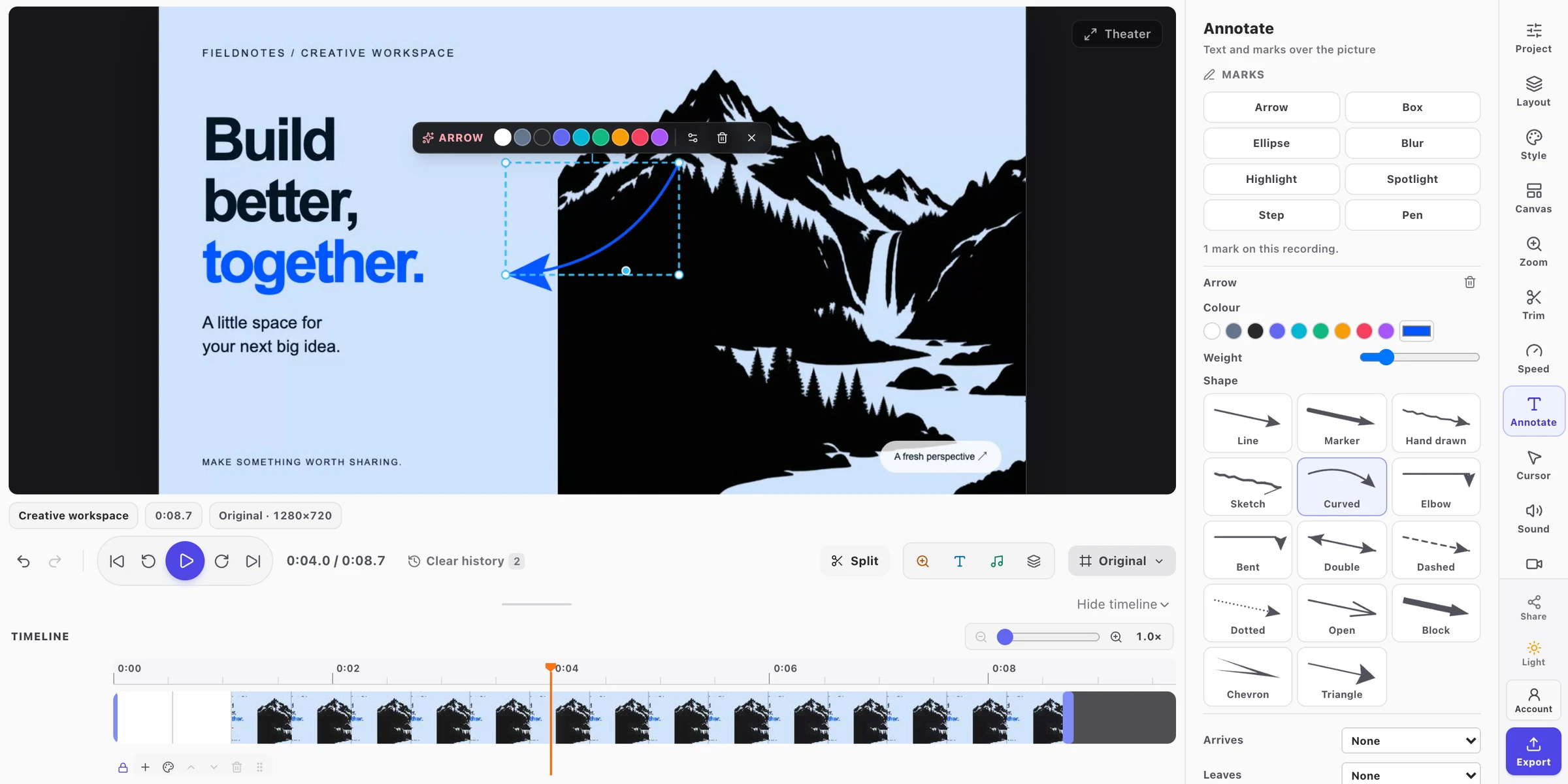
FramioCam’s video editor can trim and split the clip before export. For a support ticket, restrained editing is usually enough. Keep text readable at the size the recipient will watch, and avoid zooming so tightly that the setting responsible for the failure disappears from view.
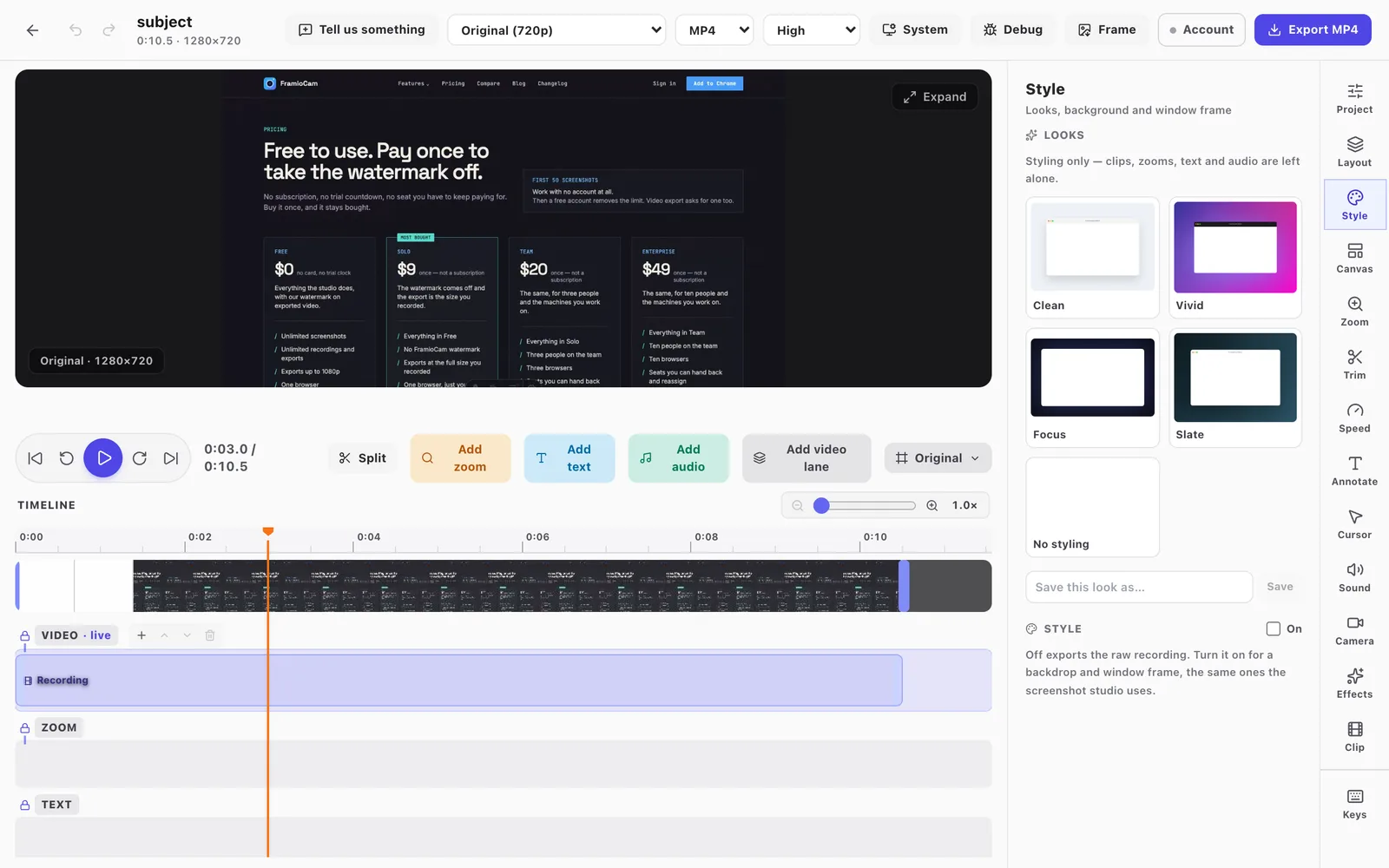
Replay the exported file from beginning to end. The final attachment is the evidence the recipient receives; checking only the editor preview leaves room for a missed crop, unreadable message or accidental cut.
Put a searchable report beside the clip
A video cannot be searched as easily as a descriptive title and written steps. The person triaging the ticket should be able to understand the issue before opening the attachment.
Mozilla’s bug-writing guidelines recommend precise reproduction steps, separate expected and actual results, and a clear distinction between observations and speculation. Use that structure alongside the recording.
Here is a fictional example you can adapt:
Title: Sorting projects resets the Active filter to All

Environment:
- App version/build: [version]
- Browser and version: [browser/version]
- Operating system: [OS/version]
- Account role: Member in a test workspace
- Window size / browser zoom: [size / zoom]

Starting state:
Projects page open, with active and archived test projects present.

Steps:
1. Select Active in the status filter.
2. Select Name in the sort menu.

Expected:
Active projects are sorted by name; the Active filter stays selected.

Actual:
The filter changes to All and archived projects appear.

Frequency:
Reproduced on 3 of 3 attempts in this setup.

Attachment:
projects-filter-reset.mp4
00:08 — select Active
00:14 — select Name; filter resets

Impact / workaround:
Cannot keep the filtered view while sorting.
Reapplying Active after sorting restores the view in this test.
Copy error messages into the report exactly. Include relevant identifiers only when they are safe to share in that ticket. If you tried a workaround, state what happened rather than assuming it will work for everyone.
For an intermittent issue, replace “sometimes” with what you actually observed: “Failed on 2 of 8 attempts; both failures followed switching workspaces.” That gives the next investigator a condition to test without claiming it is the cause.
Choose where the recording goes
Support recordings can expose customer names, addresses, private messages and information in notifications. Preparing sample data before recording is usually easier than finding every occurrence afterwards. Check the audio too: a clean picture does not remove a name spoken aloud.
FramioCam keeps capture, editing and local export on your machine. The privacy page explains the service requests and the optional Google Drive workflow. The guide to recording without uploading goes deeper into local files and sync settings.
Attaching a recording to a help desk or issue tracker uploads it to that service. Choose the destination and access settings deliberately. If you share a Drive link, check that the intended recipient can open it without making the recording public unnecessarily.
Recording and editing are available on FramioCam’s free plan; video export requires a free account and carries the free plan’s watermark and resolution limits. See pricing for current limits and one-time paid options.
Close the loop with the same steps
When a fix is ready, run the original reproduction against the updated build and record the result in the ticket. Use the same role, starting data and window conditions where they matter. If the original failure was intermittent, report the number of attempts rather than declaring success after a single pass.
The useful handoff is a compact package: a descriptive title, repeatable steps, observed results and a clip that shows the sequence clearly. The recording earns its place when it answers a question the words leave open.
FAQ
How long should a screen recording for a bug report be? Aim for 30–60 seconds when one reproduction fits naturally in that time. Keep longer waits or setup actions when they explain the failure, and include timestamps so the recipient can find the important moments.
Should I attach a screenshot or a screen recording? Use a screenshot for a stable visual problem such as overlapping text or a visible error message. Use a recording when the order of actions, motion, timing or a disappearing state is part of the issue.
What should I write alongside a bug-report video? Include a descriptive title, environment, starting state, numbered steps, expected result, actual result and how often the issue occurred. Add attachment timestamps and any workaround you tested.
Can I trim a bug-report recording? Yes. Remove unrelated material before and after the reproduction. Preserve delays and intermediate states that explain the failure, and label edits if they change how the sequence is presented.
Does FramioCam upload my bug recording automatically? Capture, editing and local export stay on your machine. You can choose to upload the exported file to your issue tracker, or use the optional Google Drive features on eligible plans. Sharing through another service is a separate upload with that service’s access settings.